
How to Set Up an E-mail Automatic Reply (Out of Office)
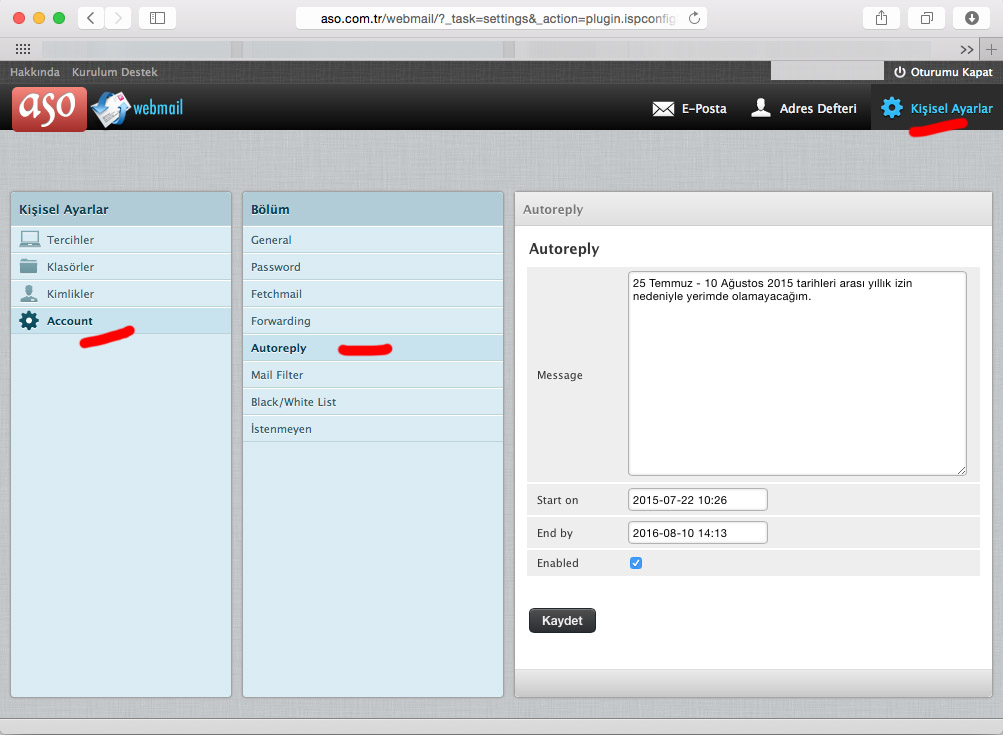
How to set up an automatic reply in ASO webmail
- Log in to webmail with your e-mail address and password.
- In Settings, turn on the automatic reply / vacation reply (autoreply) option.
- Write the message to be sent to every incoming e-mail.
- Choose the start and end dates for the automatic reply.
- Click Save. The automatic reply turns off by itself on the end date.
Menu names may differ slightly depending on the webmail version; if you get stuck, call us and we will set it up together.
Automatic reply in Gmail
- On gmail.com click the gear icon at top right → See all settings.
- In the General tab scroll down to Vacation responder and turn it on.
- Enter the date range, subject and message, then click Save changes.
Automatic reply in Outlook
- New Outlook and Outlook.com: Settings → Accounts → Automatic replies; turn it on and enter the message and date range.
- Classic Outlook (Microsoft 365 / Exchange accounts): File → Automatic Replies (Out of Office).
- Classic Outlook (POP/IMAP accounts): these accounts have no “Automatic Replies” button; set the automatic reply on the server, in webmail.
Sample automatic reply messages
Holiday: “Hello, I am on leave from 1 to 15 August with limited access to e-mail. I will get back to you when I return. For urgent matters please write to [email protected] or call +90 212 000 00 00.”
Office closed / public holiday: “Hello, our office is closed from 9 to 12 April. We have received your message and will reply from 13 April. Happy holidays.”
Corporate first response: “Thank you for your message. We have received your request and will reply within 1 business day at the latest.”
Tip: do not share private details (mobile number, travel location) in an automatic reply – spammers receive it too.
Company E-mail Prices
Frequently asked questions
How do I set up an automatic e-mail reply?
Turn on the automatic reply in your e-mail service’s settings and enter your message and date range: Gmail Settings > General > Vacation responder, Outlook.com Settings > Accounts > Automatic replies, ASO company e-mail in webmail settings.
How do I turn on an automatic reply in Gmail?
In Gmail go to Settings > See all settings > General, turn on Vacation responder, enter the dates and message and save.
Why can’t I see automatic replies in Outlook?
The Automatic Replies button in classic Outlook only exists for Microsoft 365/Exchange accounts. For POP or IMAP accounts, set the automatic reply in webmail.
Does the automatic reply go to every e-mail?
Usually only one automatic reply is sent to the same sender within a certain period, so reply loops do not occur.


Comments (0)