
Draw a Closed Curve (Barcode Label Pro)
In short: In geometry a closed curve is a curve whose start and end points coincide, so it encloses an area – circles, ellipses and heart shapes are closed curves. A closed curve that does not cross itself is a simple closed curve. The Closed curve tool in Barcode Label Pro lets you draw such free-form shapes on a label.
What is a closed curve?
| Type | Definition | Example |
|---|---|---|
| Simple closed curve | Does not cross itself | Circle, ellipse, heart |
| Non-simple closed curve | Crosses itself at least once | Figure 8, infinity sign |
| Open curve | Start and end points differ | Arc, wavy line |
A simple closed curve divides the plane into an inside and an outside, which is why it is used in label design for frames, badges and logo backgrounds.
Drawing a closed curve in Barcode Label Pro
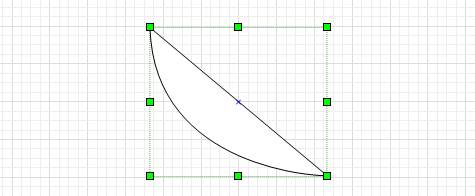
- Select the Closed curve tool in the toolbar.
- Click on the label to place the points; the last point joins the first automatically.
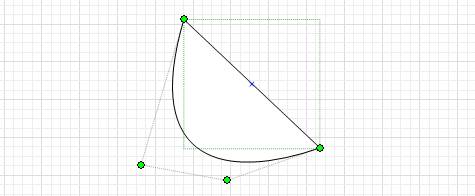
- To change points later, select the object, click the edit points tool and drag the points.
- Double-click the object to set line colour, width and fill.

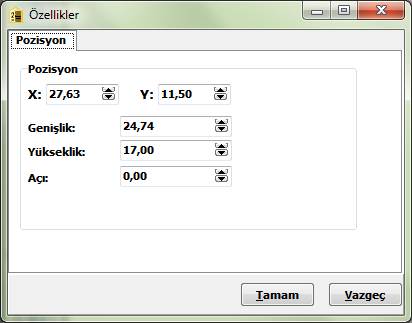
Position tab
| Setting | Description |
|---|---|
| X | Left position of the bounding rectangle on the label |
| Y | Top position of the bounding rectangle |
| Width | Width of the object area |
| Height | Height of the object area |
| Angle | Rotation angle from 0 to 360 degrees |
Frequently asked questions
What is a closed curve?
A curve whose start and end points are the same, enclosing an area. Circles and ellipses are examples.
What is a simple closed curve?
A closed curve that does not cross itself; it divides the plane into an inside and an outside.
How do I draw a closed curve in Barcode Label Pro?
Select the Closed curve tool, click points on the label and the last point joins the first. Edit points with the edit points tool and set position and angle on the Position tab.


Comments (0)