
Microsoft Outlook 2010 E-mail Setup
E-mail Setup Wizard (TR)Can’t Send or Receive E-mail?Webmail Login
Follow these steps if you are starting Microsoft Outlook 2010 for the first time. If you use e-mail or hosting on ASO servers you can call +90 212 222 38 01 for help via remote desktop.
Screenshots show the Turkish version of the program; menu positions are the same in English.
Example:


If you have used Outlook 2010 before: open the program, select File > Info and click Add Account.
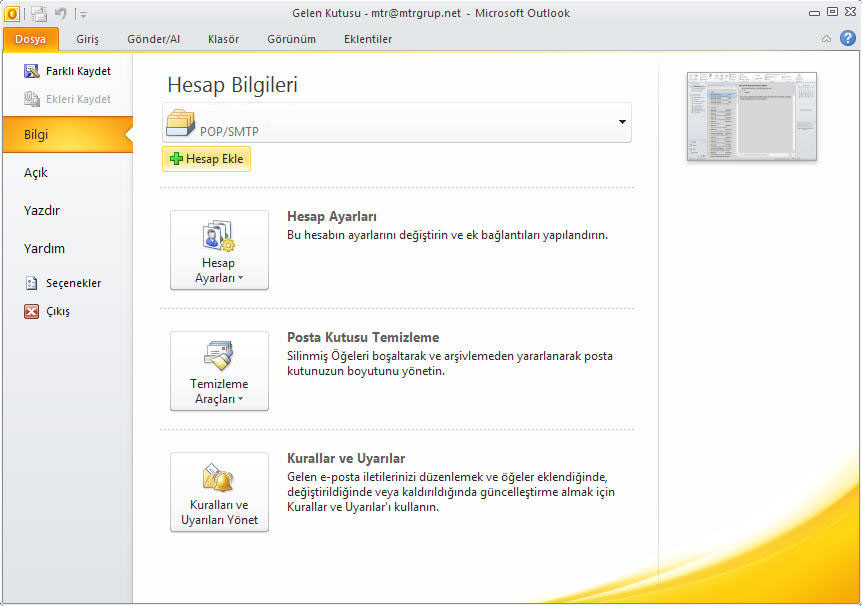
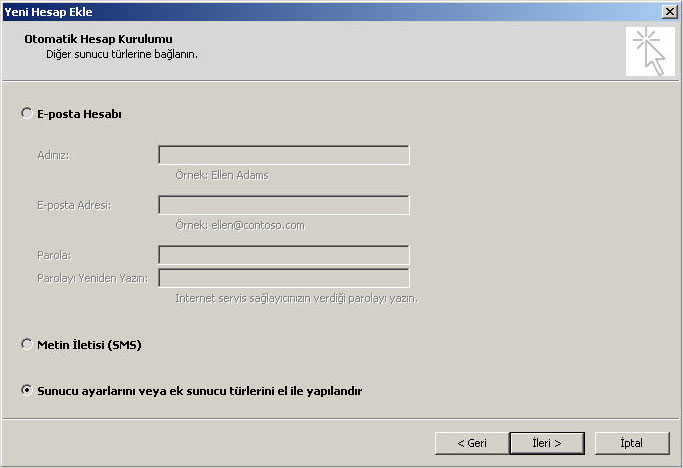
Select Manually configure server settings or additional server types.
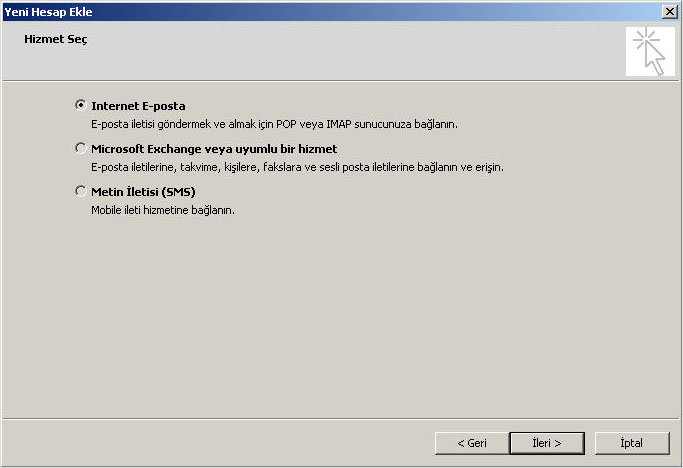
With Internet E-mail selected, click Next.
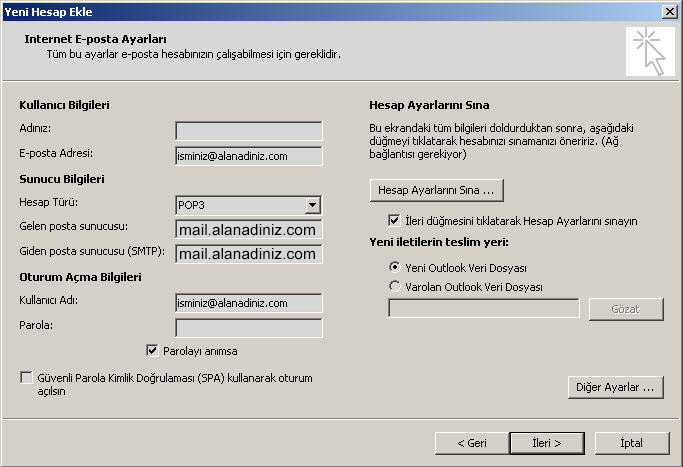
Your Name: your name. E-mail Address and User Name: your full e-mail address ([email protected]). Password: your password. Account Type: POP3 (or IMAP). Enter the incoming and outgoing mail servers, then click More Settings.
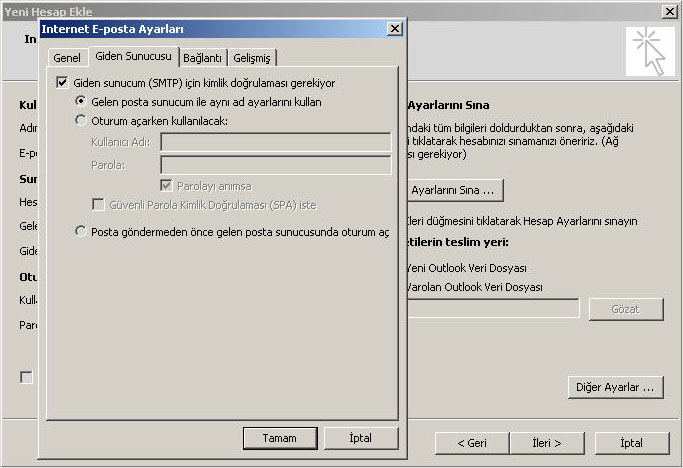
On the Outgoing Server tab tick My outgoing server (SMTP) requires authentication.
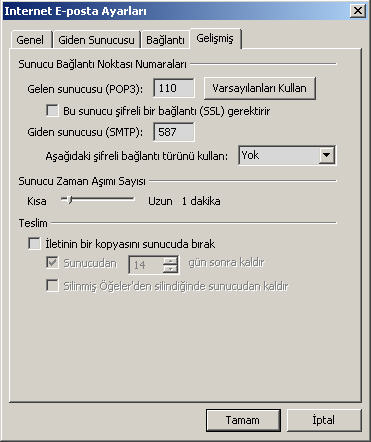
On the Advanced tab set the server ports (see the current settings below). Under Delivery, untick Leave a copy of messages on the server if you use POP3 and do not want copies left on the server.
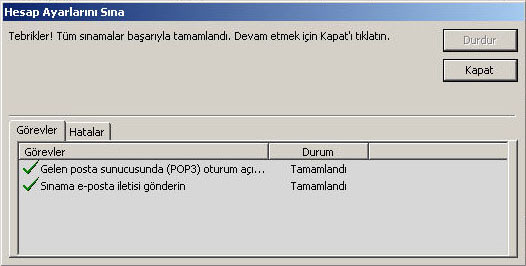
Click OK, then Test Account Settings to check for problems.
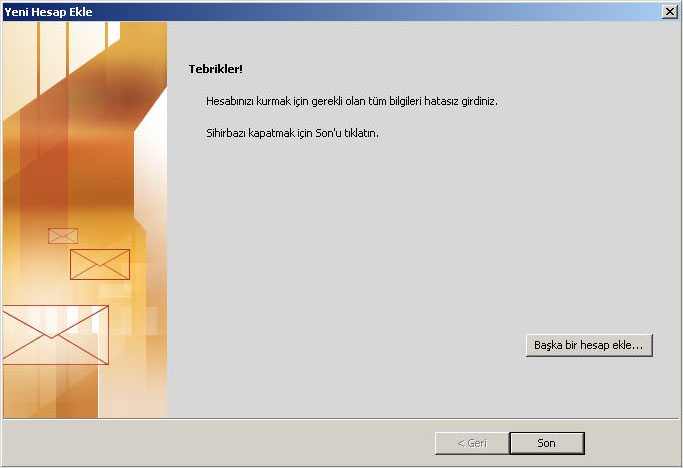
Click Next and then Finish.
SSL/TLS settings for ASO Web mail servers
If your e-mail is hosted on ASO Web servers, the settings shown in the steps above (mail.yourdomain.com, ports 110/587 without encryption) still work. To set up your e-mail with an encrypted SSL/TLS connection, use:
| Incoming / outgoing server | smaug.aso.com.tr |
| IMAP | port 993, SSL/TLS |
| POP3 | port 995, SSL/TLS |
| SMTP (outgoing) | port 465, SSL/TLS, authentication required |
| User name | your full e-mail address |
Company E-mail Prices


Comments (0)