
How to Add Gmail to iPhone (Step-by-Step with Screenshots)
On every iPhone model, a Gmail address is added the same way (Add Account > Google); only the menu names change with the iOS version.
From the Home Screen, go to Settings > Passwords & Accounts > Add Account > Google, then enter your e-mail address and password (the menu path for newer iOS versions is at the end of this article). If 2-Step Verification is enabled on your Gmail account, you may receive a verification code or a sign-in prompt after entering your password.
Step-by-step setup with iPhone screenshots
Note: the screenshots are from an iPhone with Turkish interface language (iOS 12); the English menu names are given in each step.
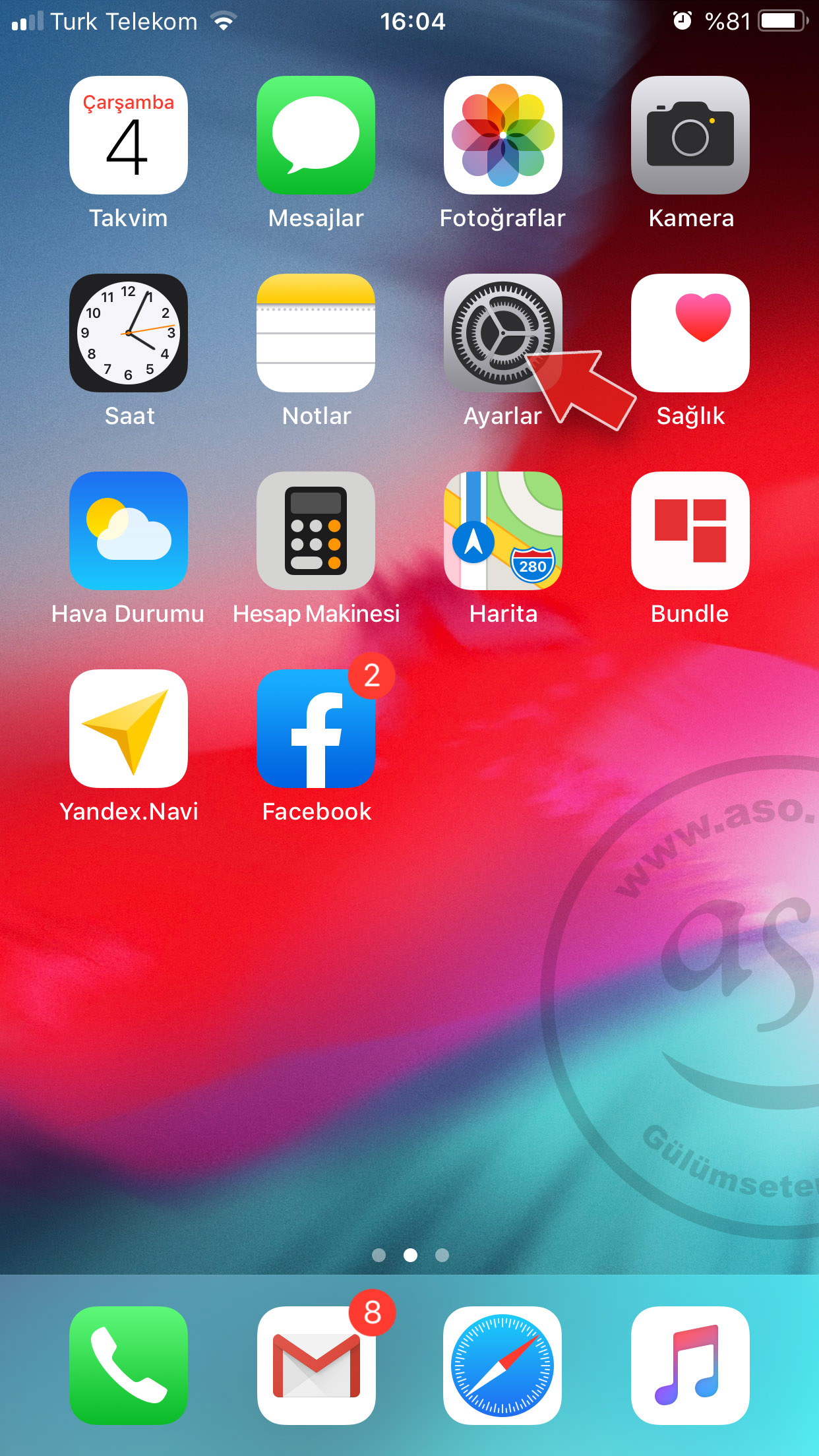
1- Tap Settings on the Home Screen.
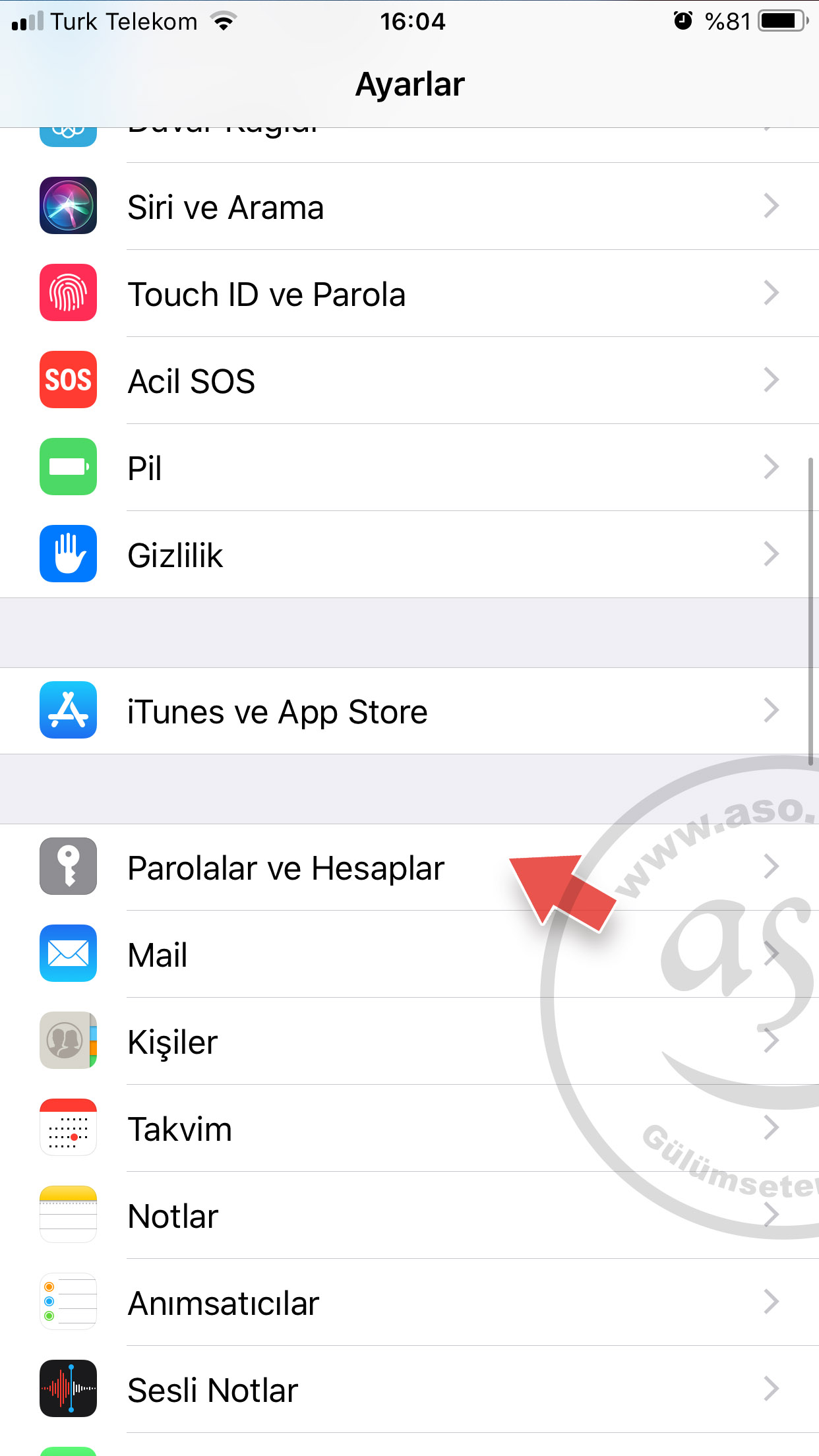
2- Tap Passwords & Accounts.
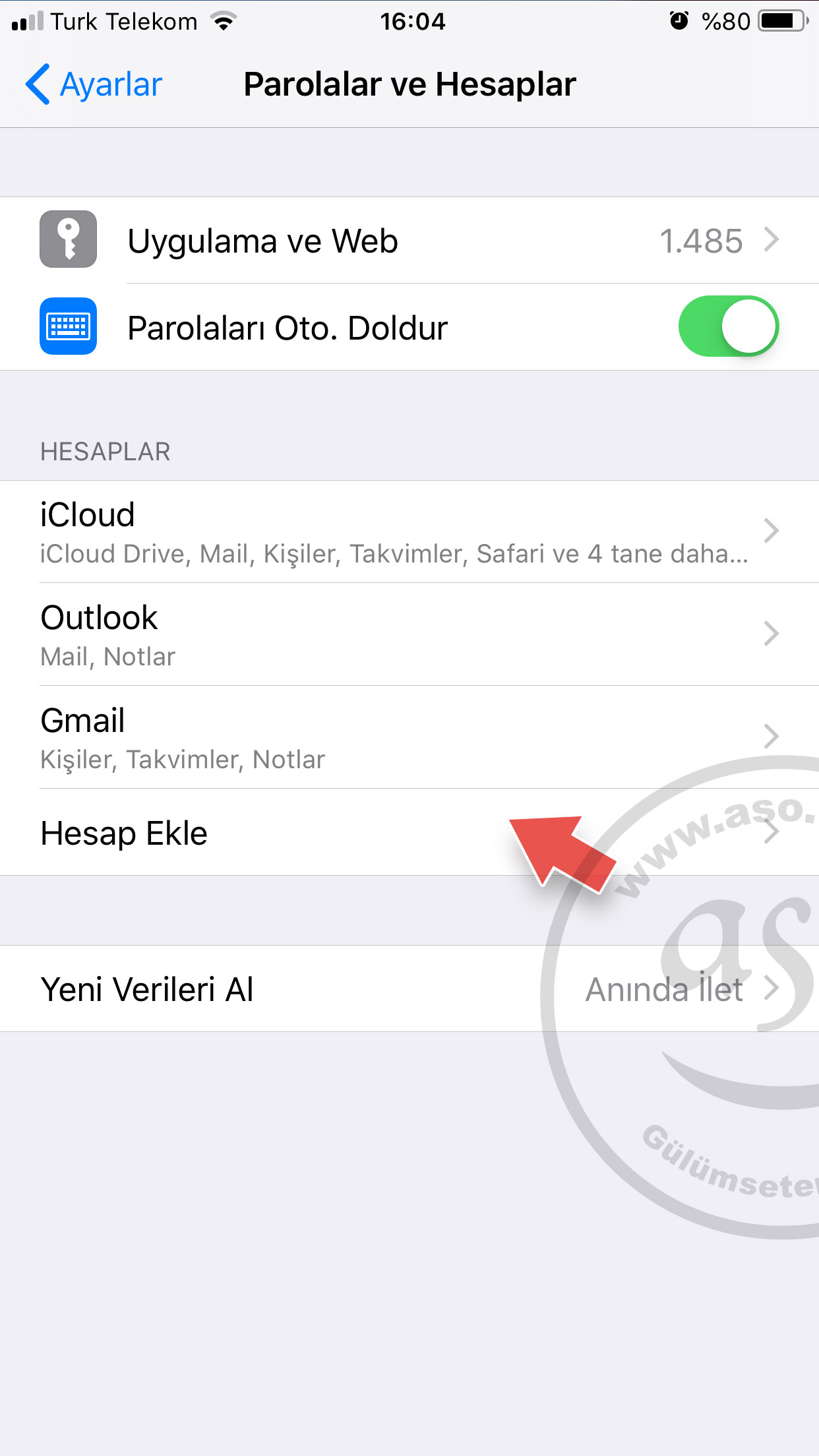
3- Tap Add Account.
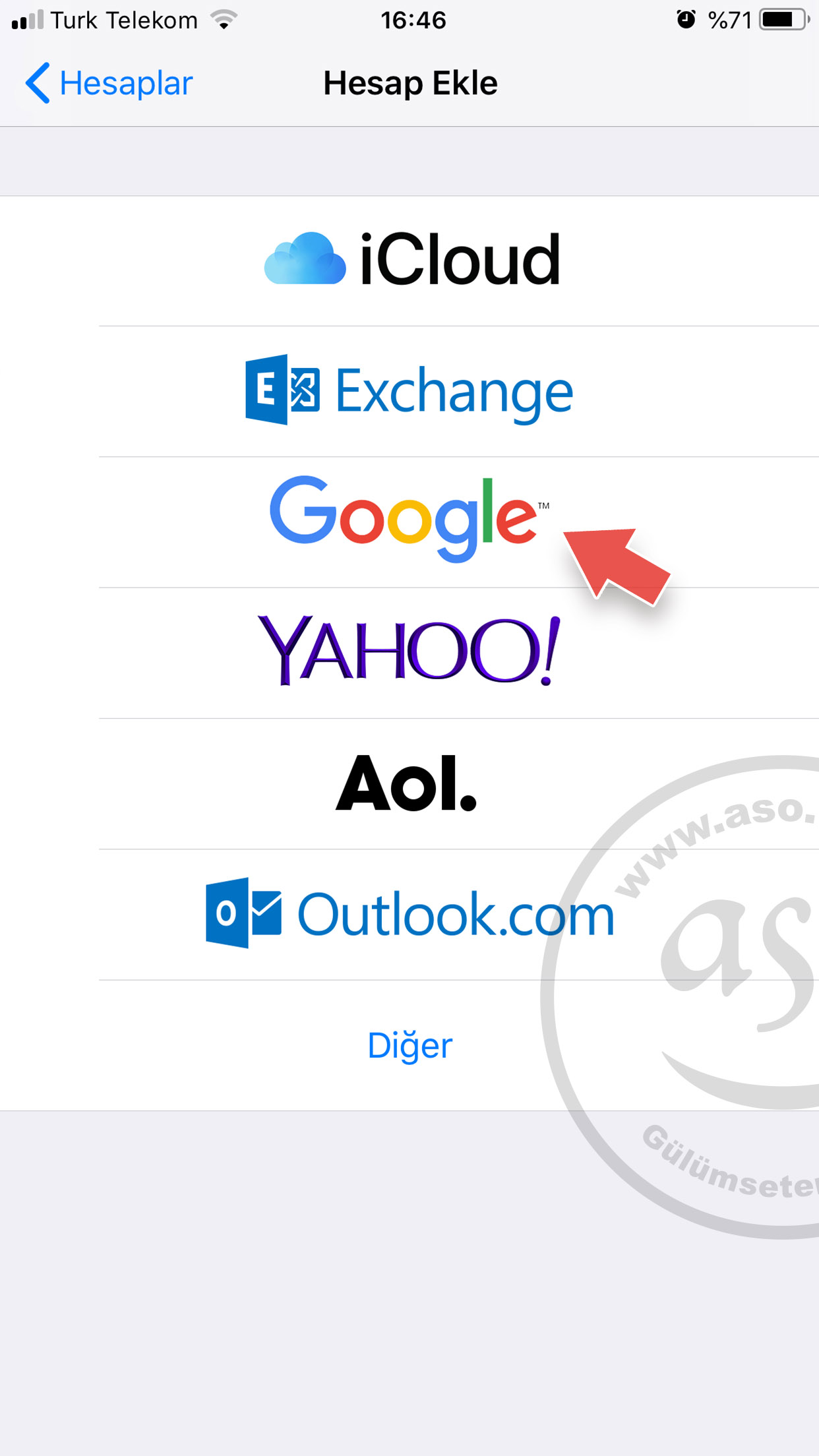
4- Tap the Google logo.
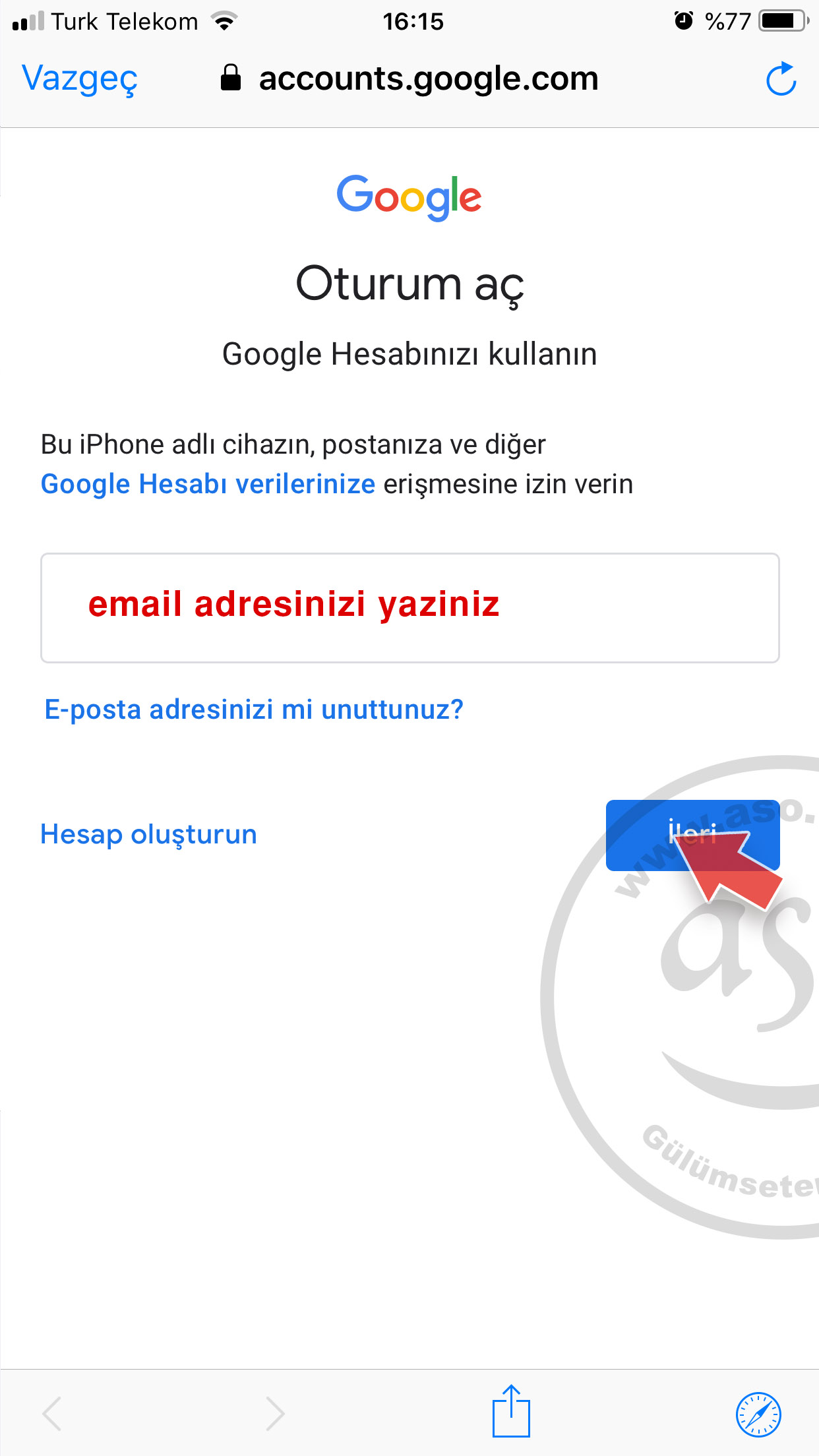
5- Enter your Gmail address and tap Next.
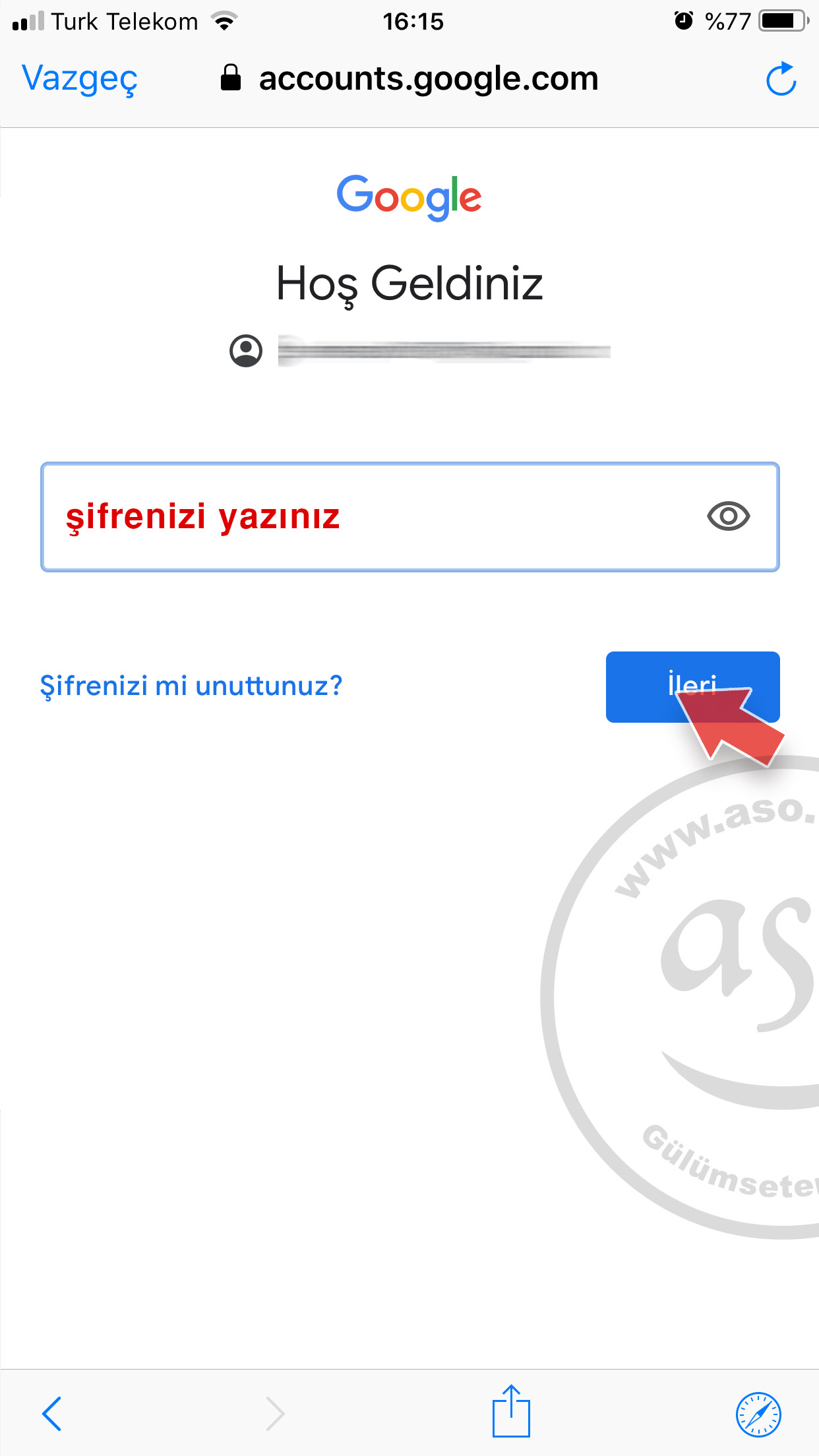
6- Enter your password and tap Next.
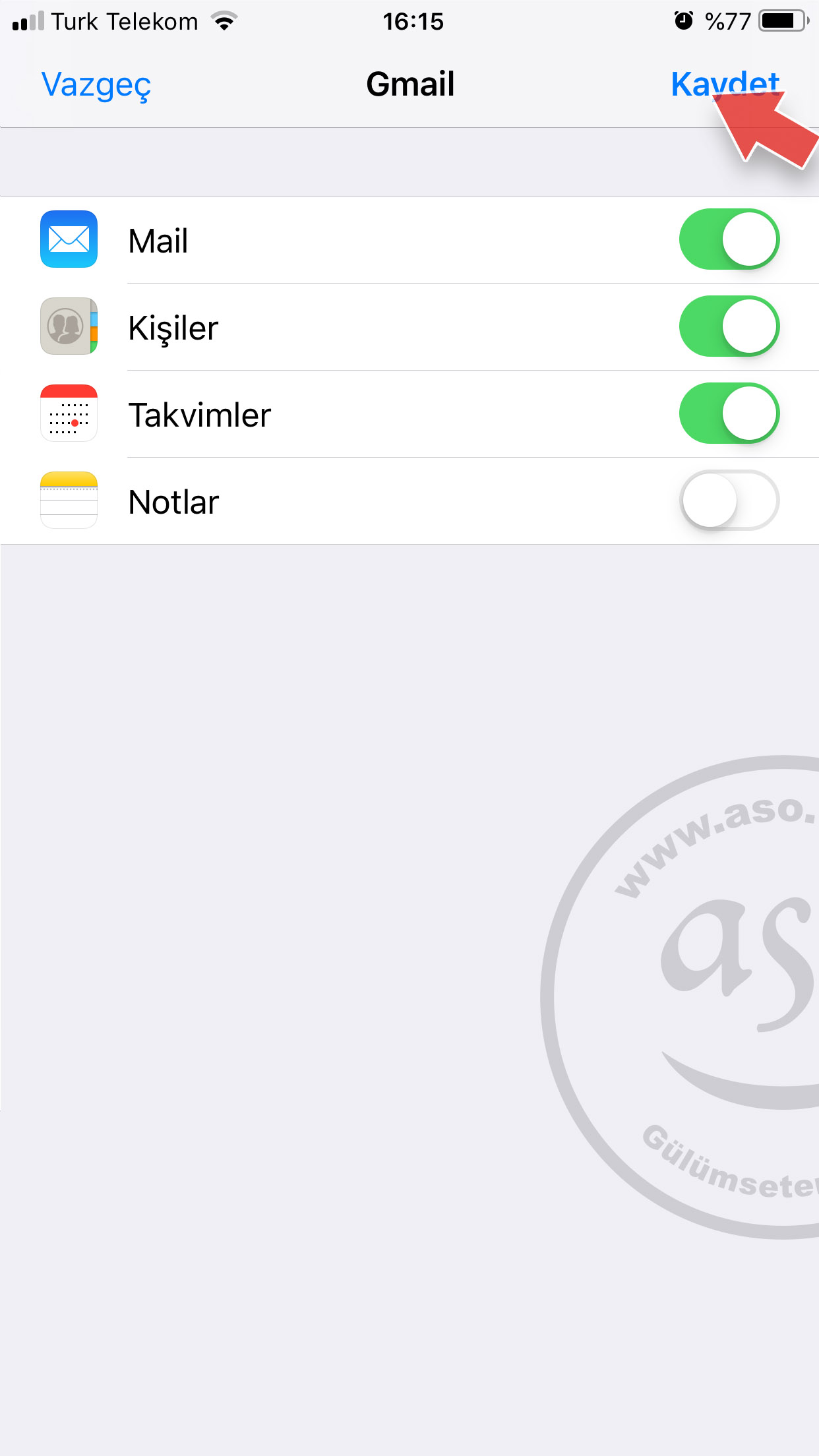
7- Finally, turn on the items you want to sync with your iPhone (Mail, Contacts, Calendars, Notes) and tap Save.
Important: if 2-Step Verification is on, Google may send you a verification code or a prompt to another device after you enter your password. Enter the code or approve the prompt.
Menu path in newer iOS versions
The screenshots above are from iOS 12. The steps are the same; only the menu that leads to “Add Account” differs by iOS version:
| iOS version | Menu path |
|---|---|
| iOS 18 and later | Settings > Apps > Mail > Mail Accounts > Add Account > Google |
| iOS 14 – iOS 17 | Settings > Mail > Accounts > Add Account > Google |
| iOS 12 – iOS 13 | Settings > Passwords & Accounts > Add Account > Google |
| iOS 11 | Settings > Accounts & Passwords > Add Account > Google |
You can check your iOS version under Settings > General > About. Apple also describes the current path in Add an email account to your iPhone.
Using the Gmail app
If you prefer Google’s own app to Apple Mail, download the free Gmail app from the App Store and sign in with your Google Account. Labels, archive and switching between several accounts are easier in the Gmail app, while Apple Mail keeps all your other e-mail accounts in one place.
Can’t sign in to Gmail on iPhone? What to do
- Check that you typed the full address (including @gmail.com) and the correct password; try the password on a computer at mail.google.com.
- If 2-Step Verification is on, enter the code you receive or approve the Google prompt on your other device.
- When adding the account, always choose Google, not “Other”.
- Make sure date & time are set automatically and your internet connection works.
- If the problem continues, delete the account from Mail Accounts, add it again and update iOS.
Frequently asked questions
Can I use Gmail on an iPhone?
Yes. You can add your Gmail account to the built-in Mail app with Add Account > Google, or install Google’s free Gmail app from the App Store. Your Apple ID and Gmail account are independent of each other.
Can I add two Gmail accounts to the same iPhone?
Yes. Repeat Add Account > Google for the second account; each appears as a separate mailbox in Mail. In the Gmail app, tap your profile picture and choose “Add another account”.
Where is the Gmail archive in iPhone Mail?
Archived Gmail messages are not deleted; they stay in the “All Mail” folder. Open your Gmail account’s folder list in Mail and tap “All Mail”.
What should I do on my iPhone after changing my Gmail password?
After you change the password in your Google Account, the iPhone asks you to sign in again; just sign in with the new password. If no prompt appears, delete the account from the Mail Accounts list and add it again.
Will my contacts and calendar sync too?
Yes. The last setup step has separate switches for Mail, Contacts, Calendars and Notes. Whatever you turn on is synced between your Google Account and the iPhone.
To set up your company e-mail address (e.g. name@yourcompany.com) on an iPhone, see our iPhone e-mail setup guide or the E-mail Setup Wizard (in Turkish). No corporate e-mail address yet? Buy one here.
If you have a problem, write to us in the comment box below.


Comments (0)