
iPhone Exchange Account Setup (Illustrated)
Current iPhone / iPad Mail SetupE-mail Setup Wizard (TR)
Follow these steps to set up Exchange ActiveSync on your iPhone, iPad or iPod touch. Once the Exchange account is added you can sync Mail, Contacts, Calendars, Reminders and Notes with your iOS device.
Settings > Passwords & Accounts > Add Account > Exchange.
Screenshots show the Turkish version of the program; menu positions are the same in English.
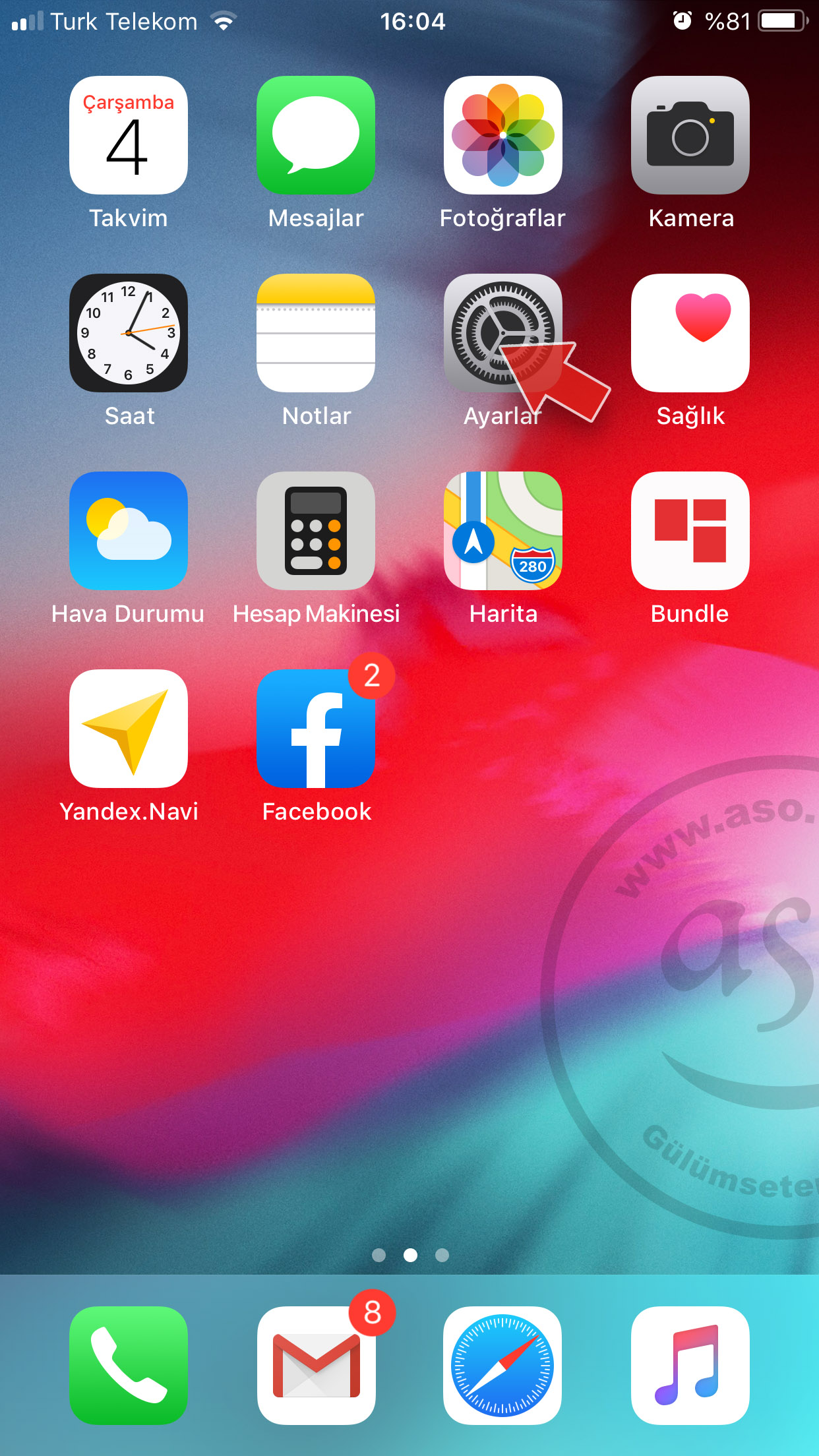
1. On the Home screen tap Settings.
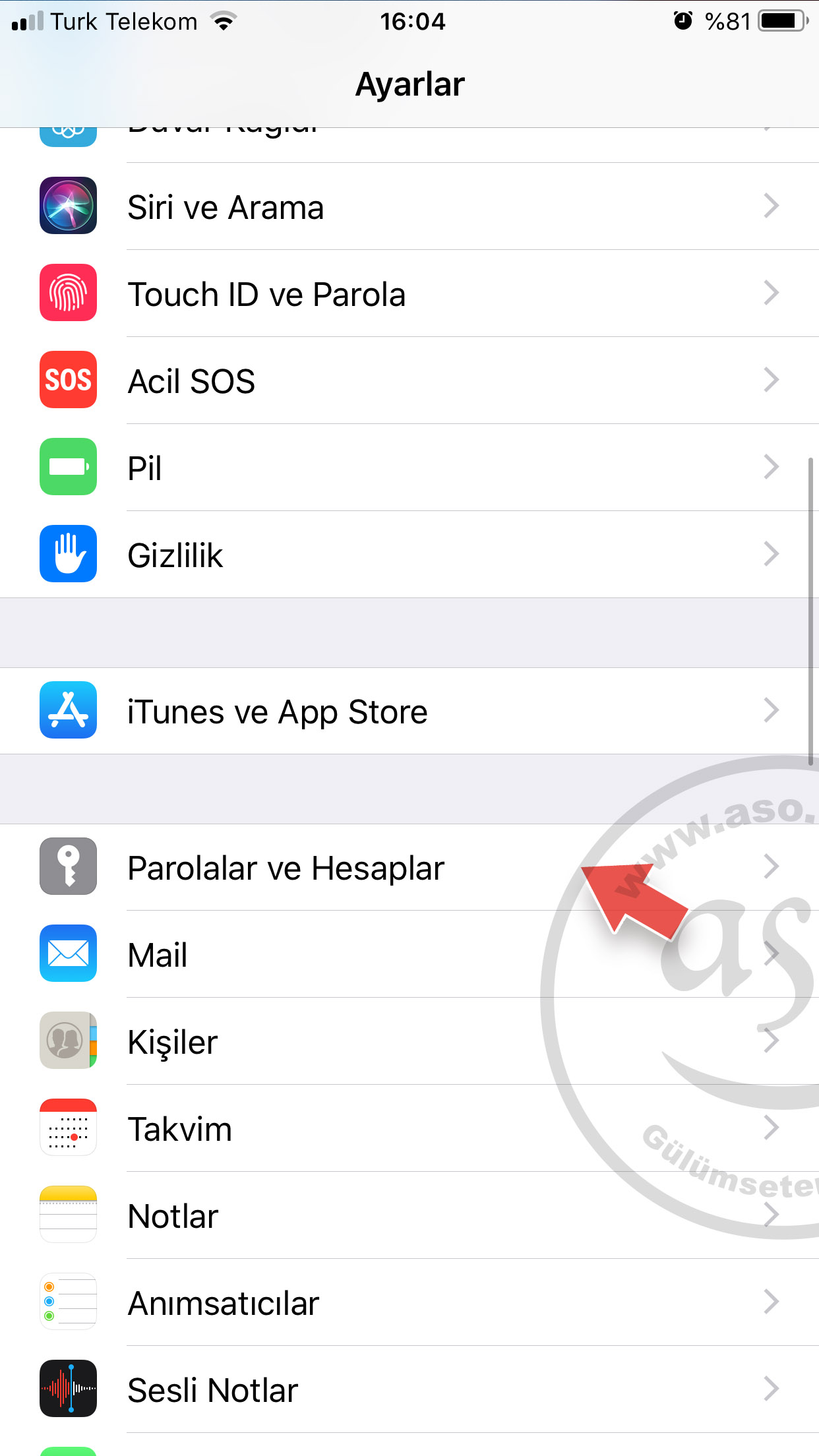
2. Tap Passwords & Accounts.
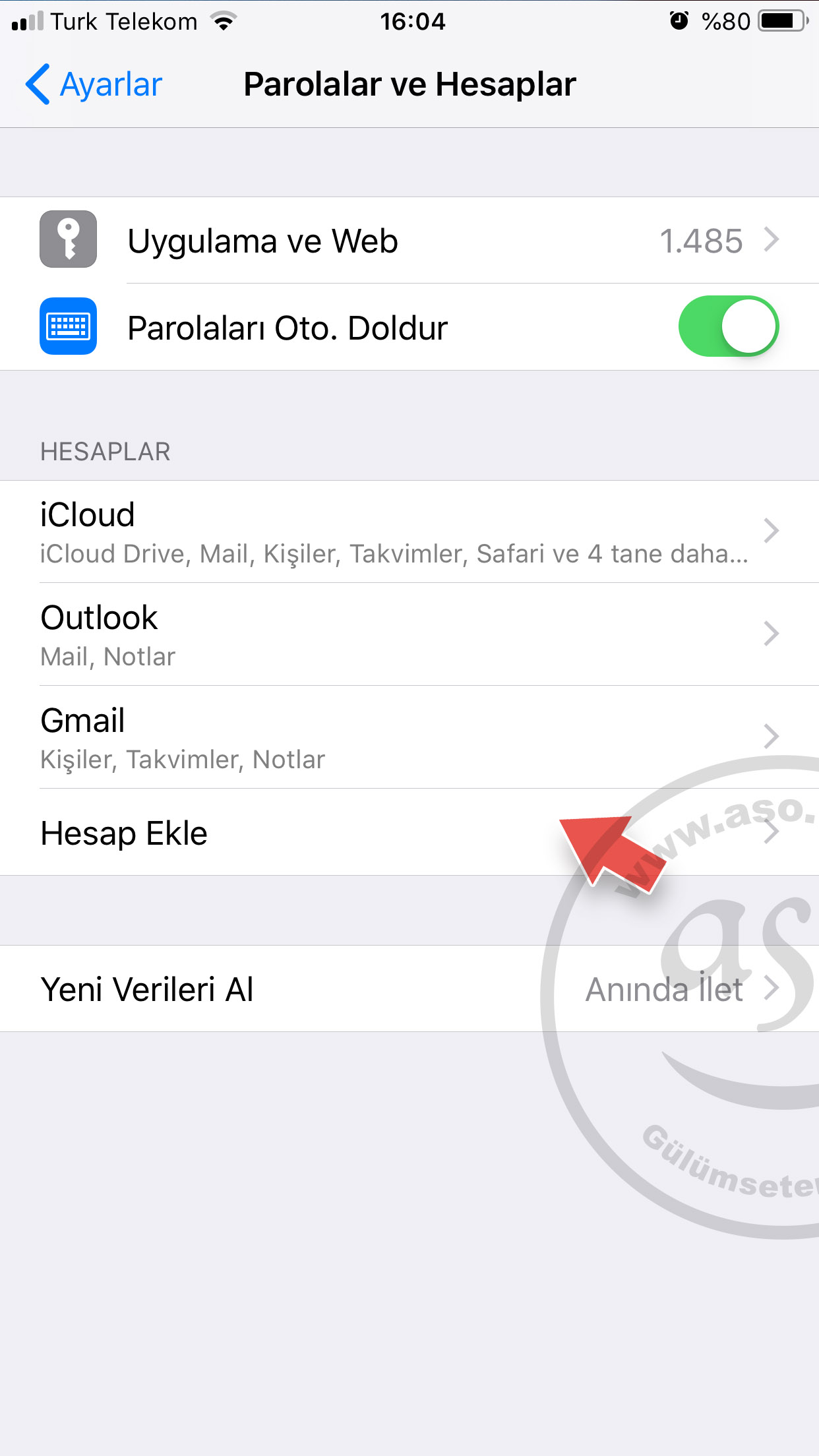
3. Tap Add Account.
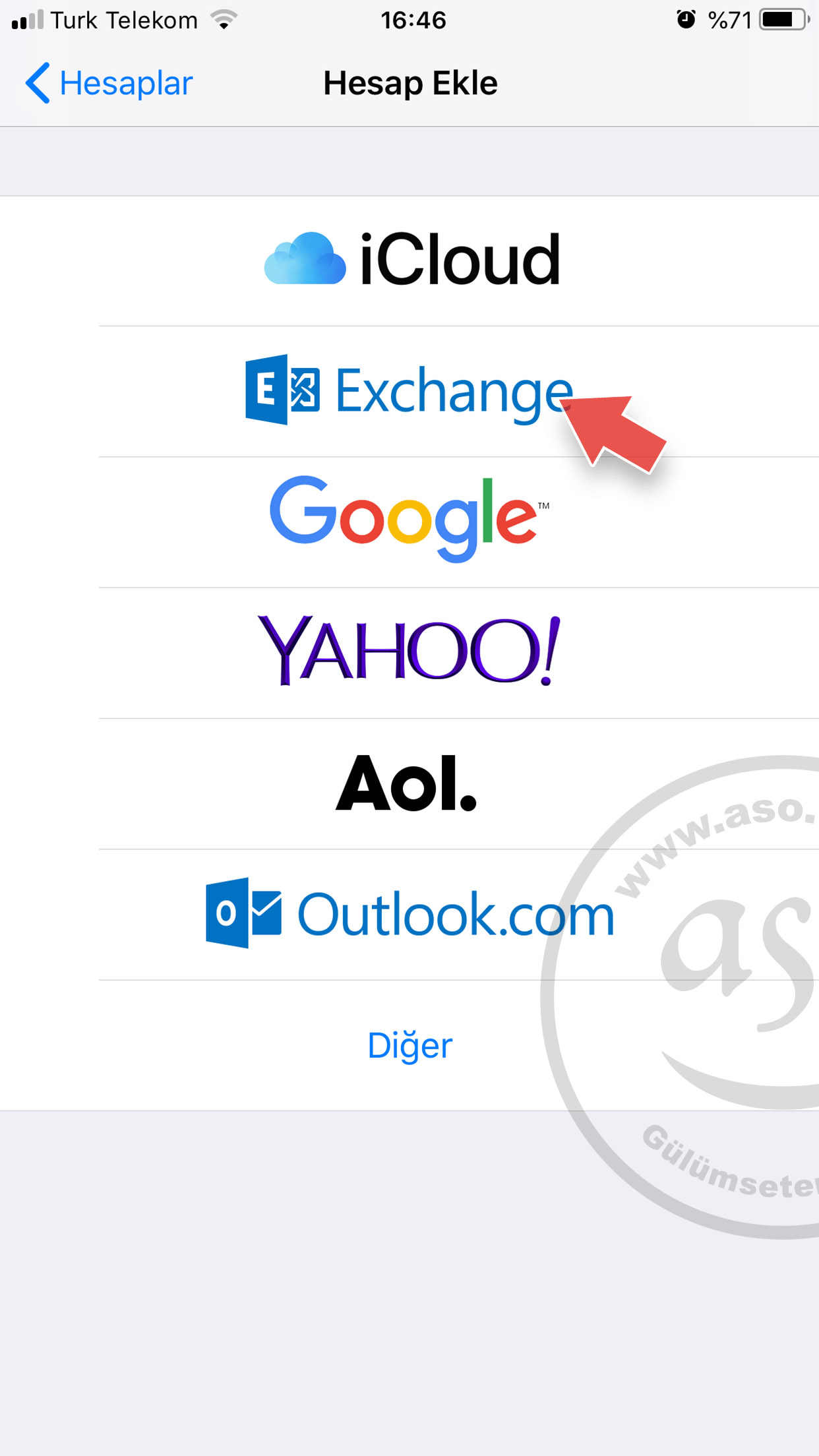
4. Tap Exchange in the account list.
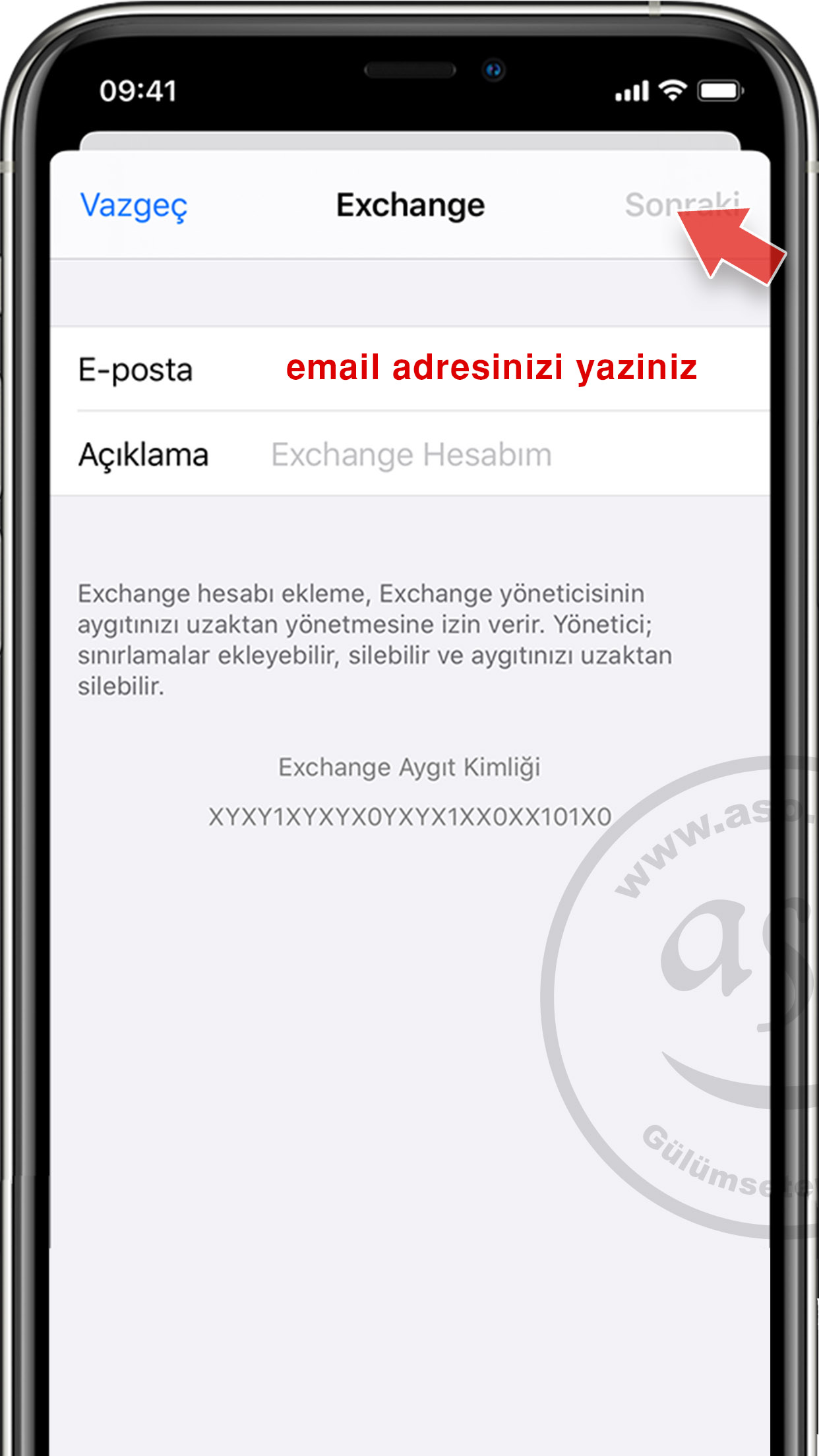
5. Enter your e-mail address and tap Next. You can also enter an account description.
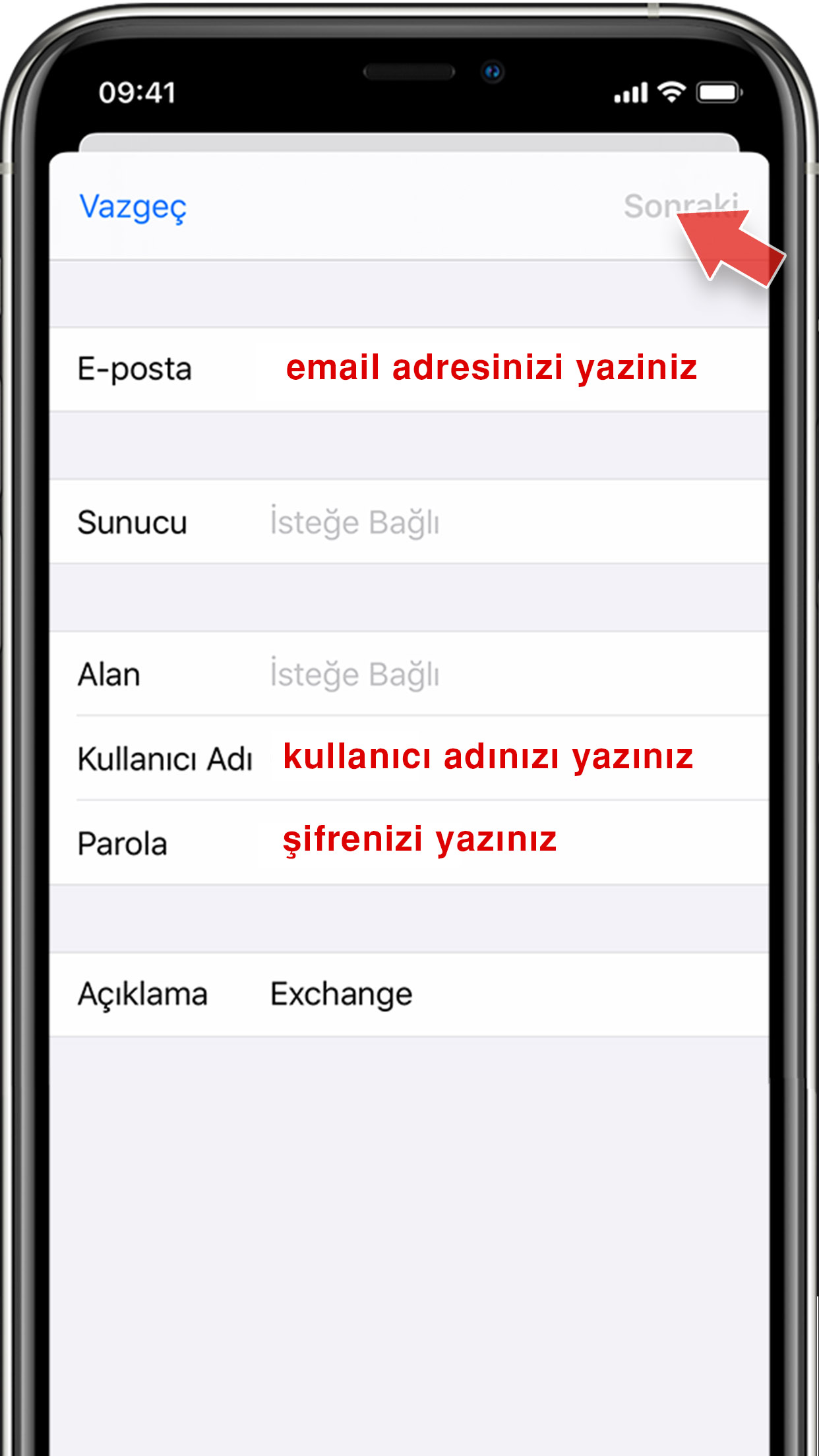
6. Choose Sign In or Configure Manually. Sign In finds your Exchange settings automatically; if your account uses modern authentication you are taken to a custom sign-in flow. With Configure Manually, enter your password, tap Next and, if asked, the server details provided by your Exchange administrator.
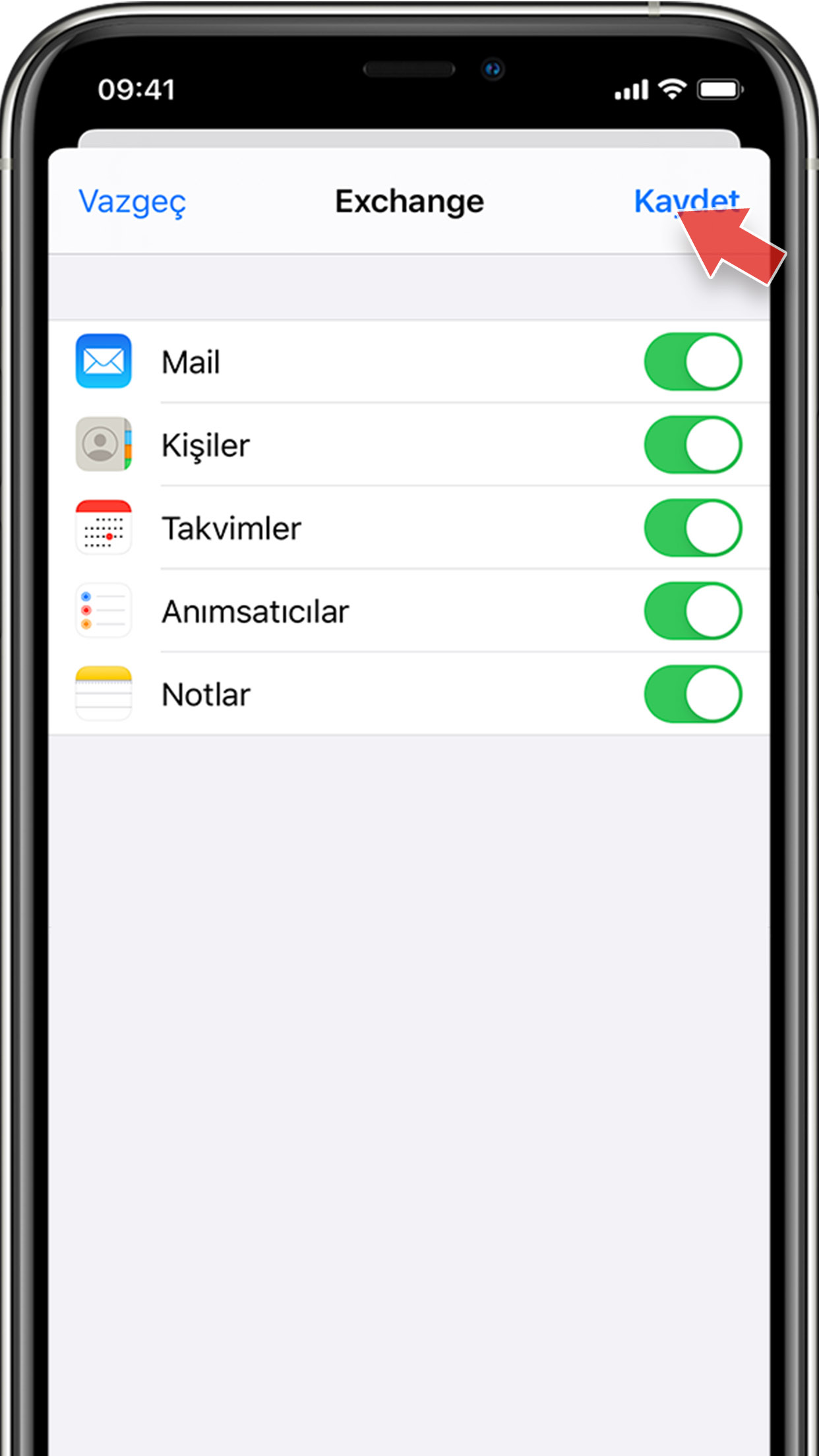
7. Choose what to sync – Mail, Contacts, Calendars, Reminders and Notes – and tap Save. Setup is complete.
Company E-mail Prices


Comments (0)