
Add a Yahoo Mail Account to iPhone (Illustrated)
This guide is for iPhone (older iOS). It is kept for users who still use this version. For current devices and programs:
Current iPhone / iPad Mail SetupE-mail Setup Wizard (TR)
Current iPhone / iPad Mail SetupE-mail Setup Wizard (TR)
Follow the illustrated steps below to add your Yahoo Mail account to the iPhone Mail app. Setup takes only a few steps. Yahoo addresses can look like [email protected], [email protected] or [email protected]. If Yahoo two-step verification is on, Yahoo may send a verification code to your phone that you must enter at the last step.
Screenshots show the Turkish version of the program; menu positions are the same in English.
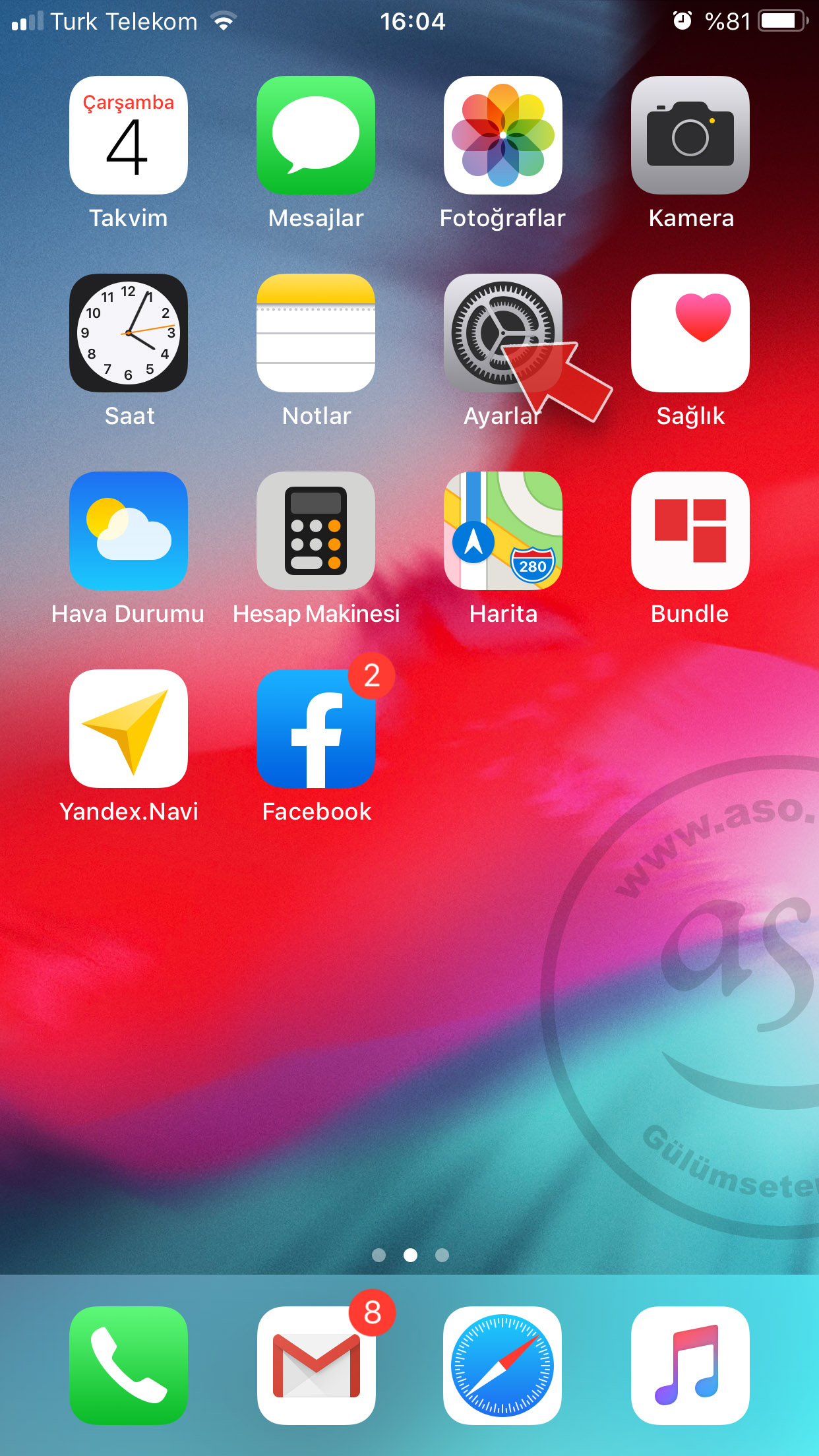
1. On the Home screen tap Settings.
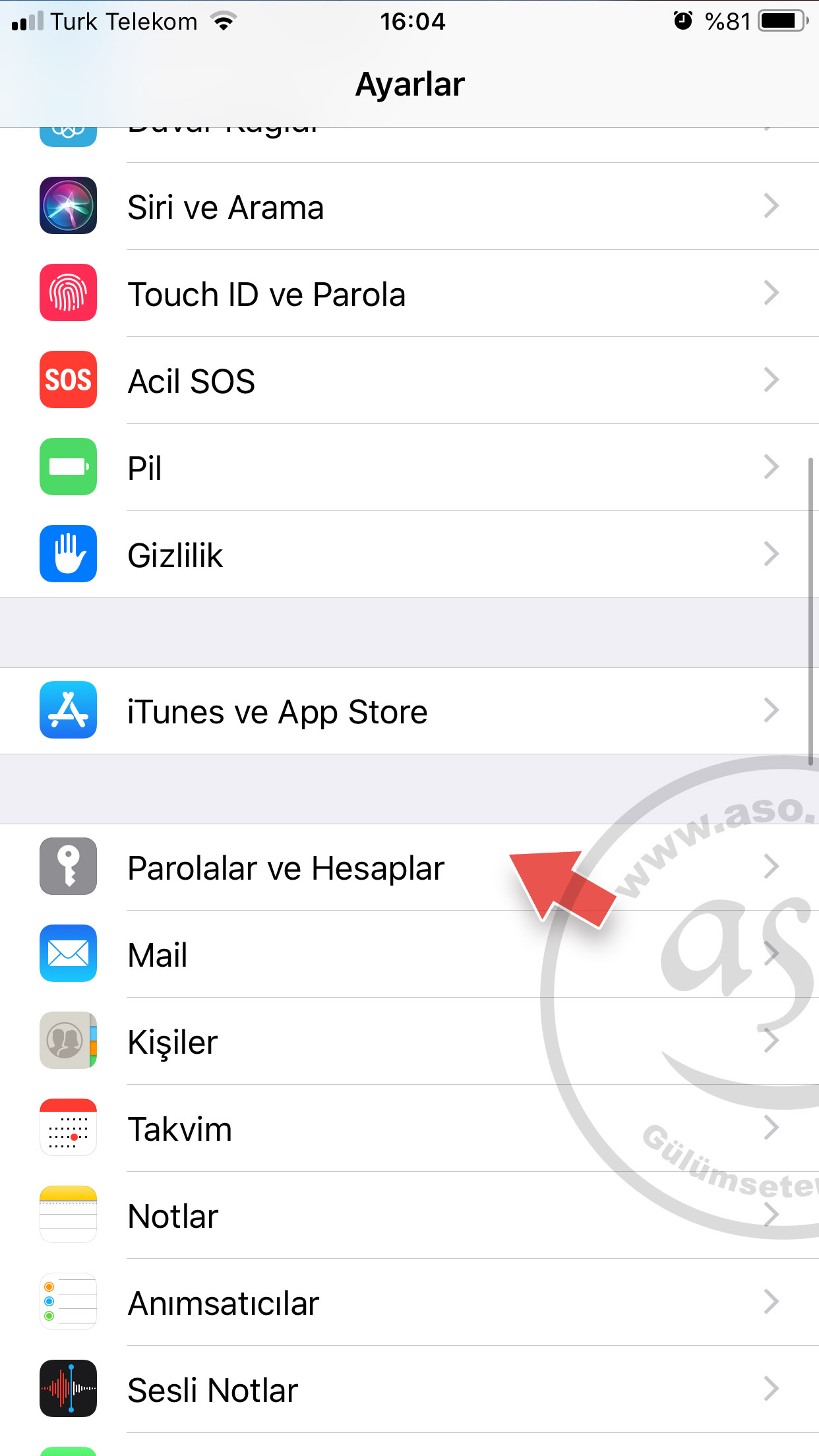
2. Tap Passwords & Accounts.
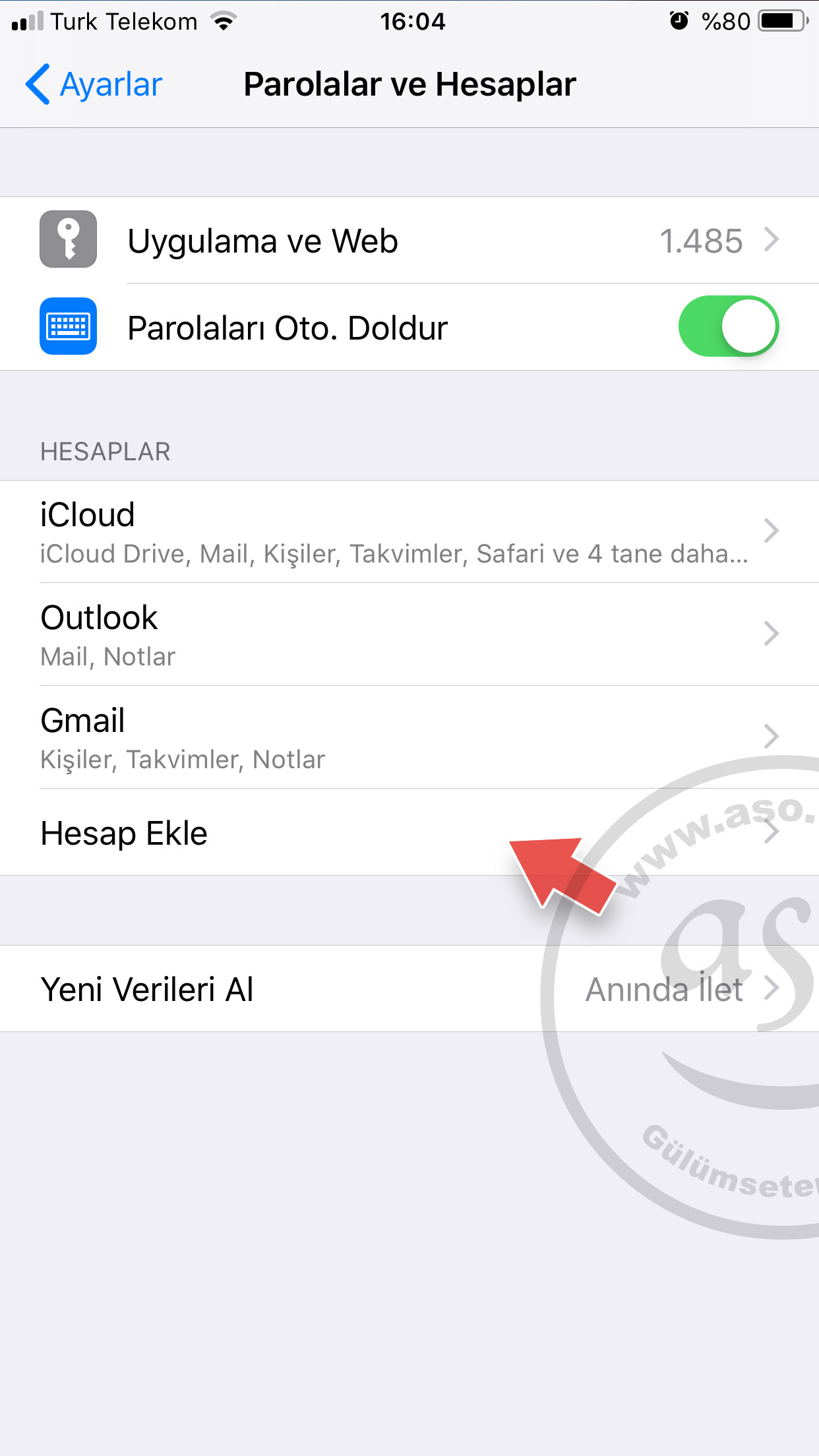
3. Tap Add Account.
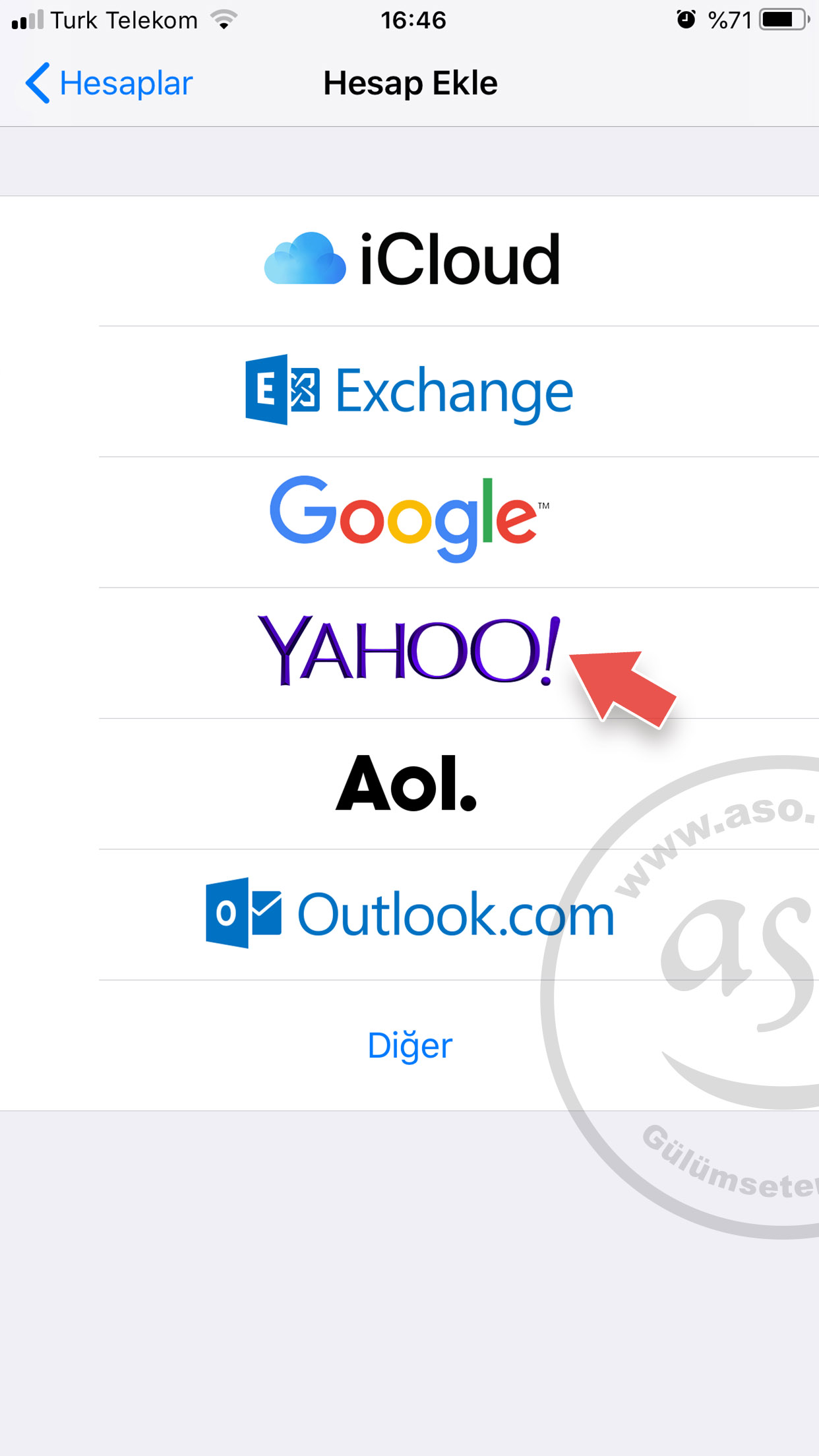
4. Tap Yahoo.
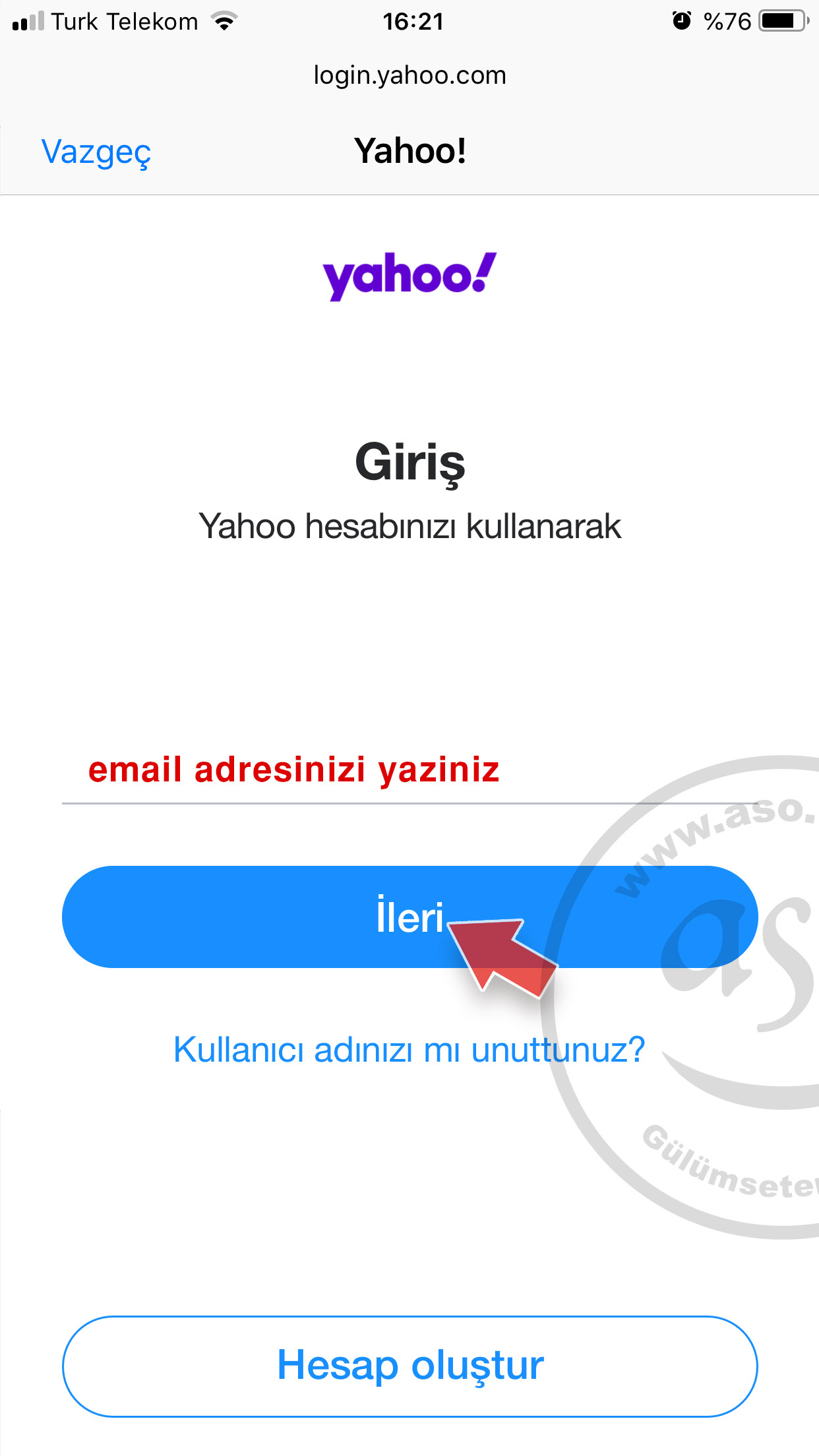
5. Enter your e-mail address and tap Next.
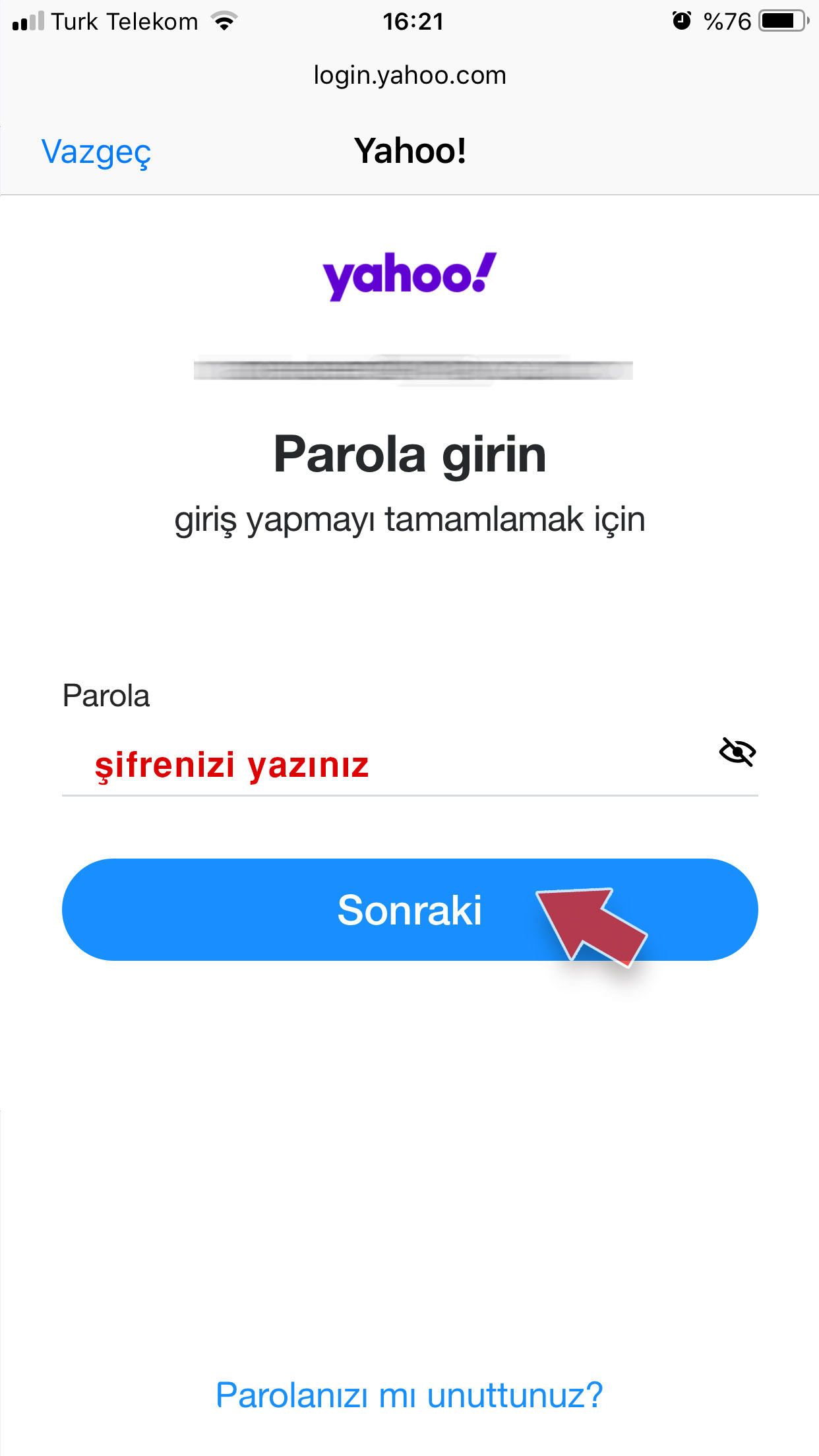
6. Enter your password and tap Next.
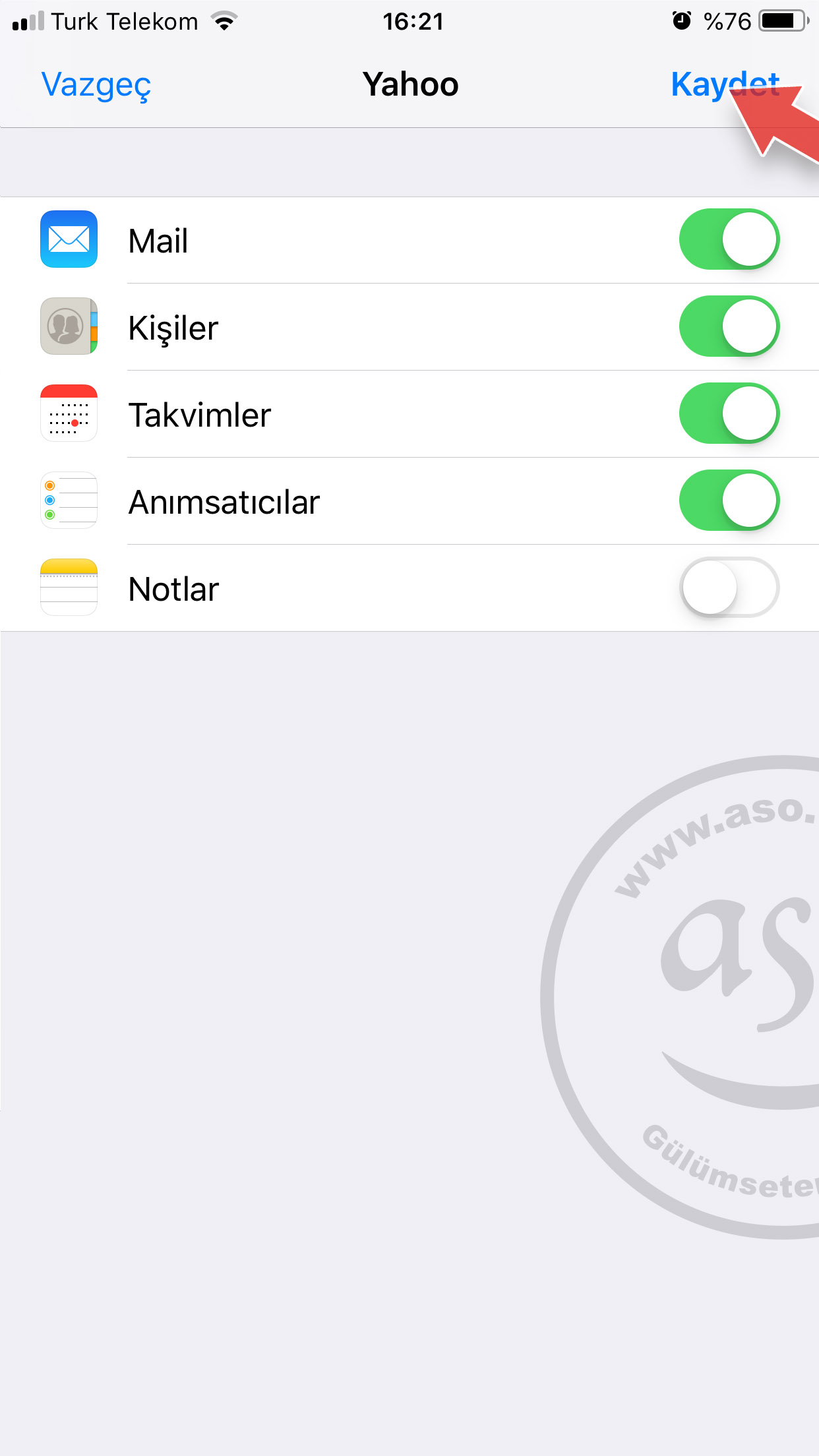
7. Tap Save. Setup is complete. If two-step verification is on, enter the code Yahoo sends you.
You can now send and receive mail with the Mail app.
Need company e-mail with your own domain? Get trouble-free company e-mail on ASO Web servers with phone support.
Company E-mail Prices
Company E-mail Prices


Comments (0)