
Microsoft Outlook 2007 E-mail Setup
E-mail Setup Wizard (TR)Can’t Send or Receive E-mail?Webmail Login
Set up Microsoft Outlook 2007 (Office 2007) with the e-mail address and password you were given as follows.
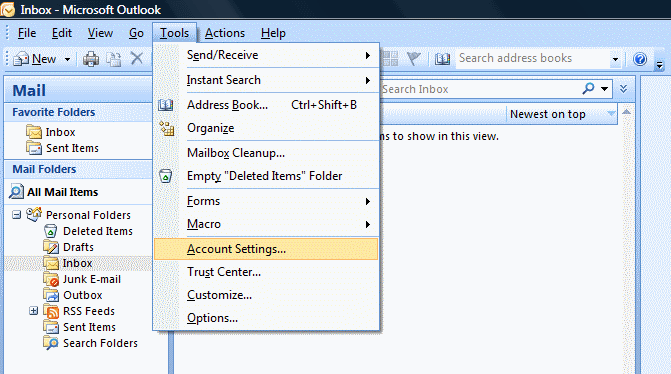
1. Go to Tools > Account Settings.
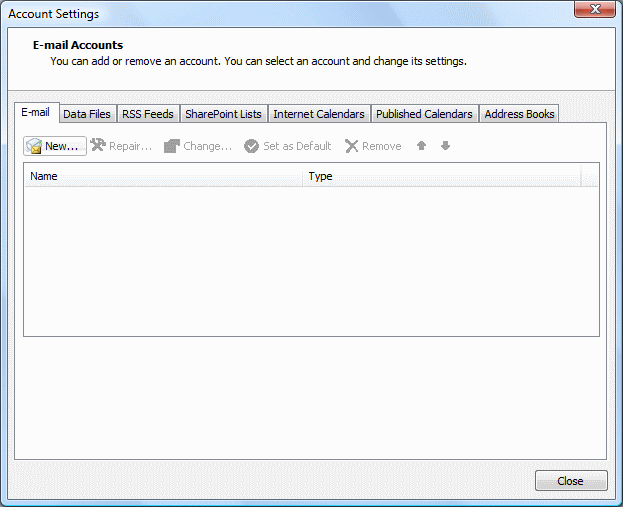
2. Click New.
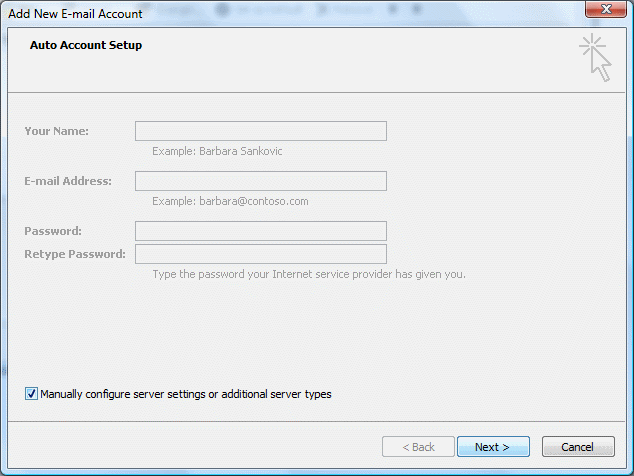
3. Tick Manually configure server settings… at the bottom of the window and click Next.
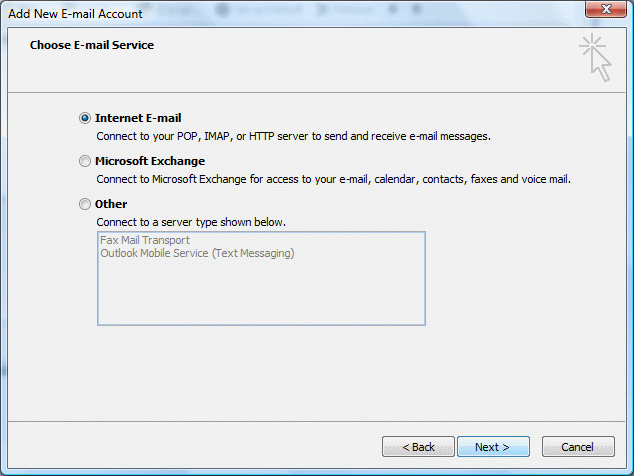
4. Select Internet E-mail and click Next.
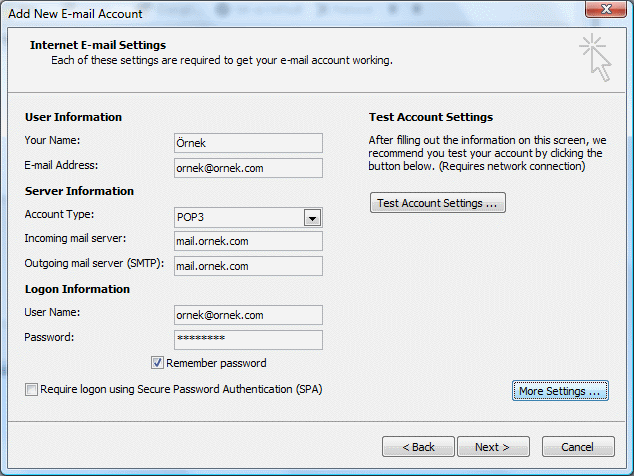
5. Fill in the window with your own account name and password as shown, then click More Settings.
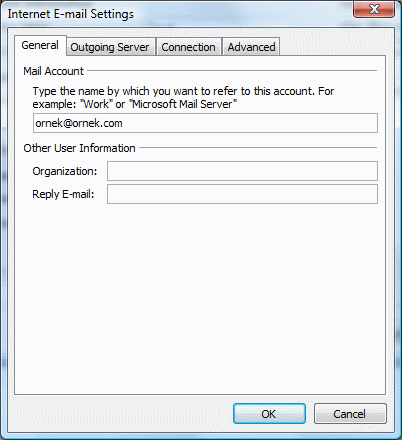
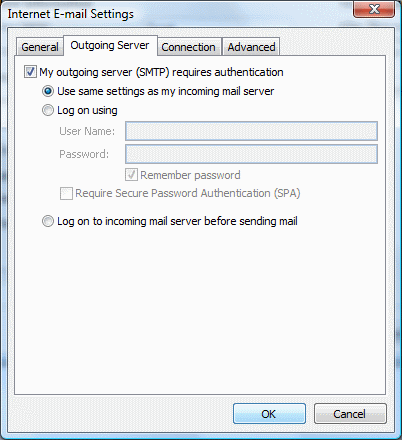
6. On the Outgoing Server tab tick the first box. On the Advanced tab set the server ports (see the current settings below) and click OK.
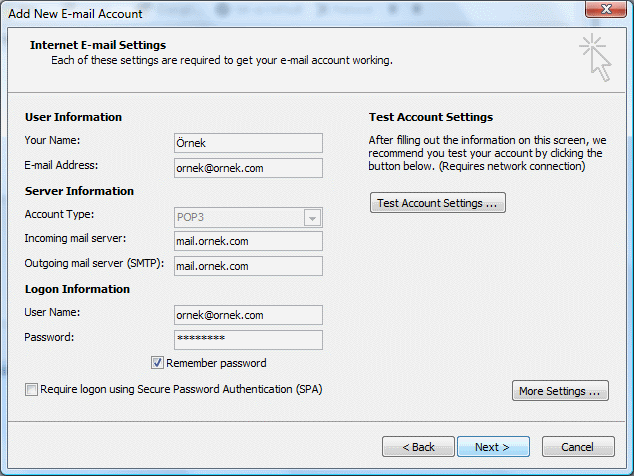
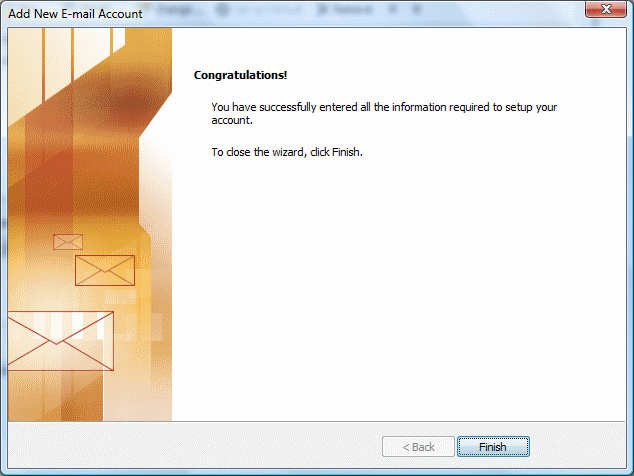
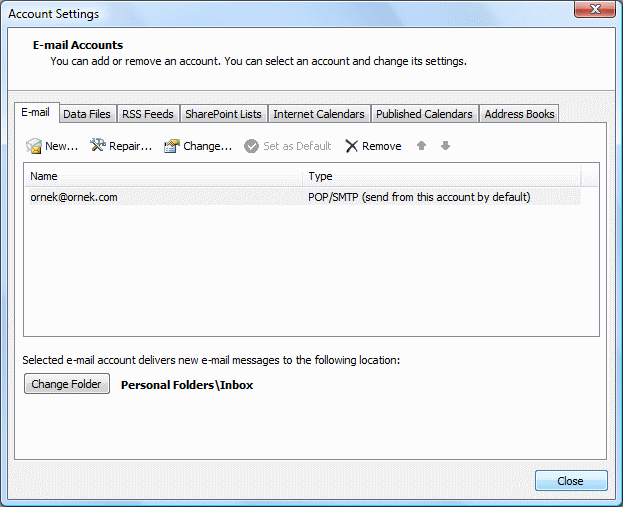
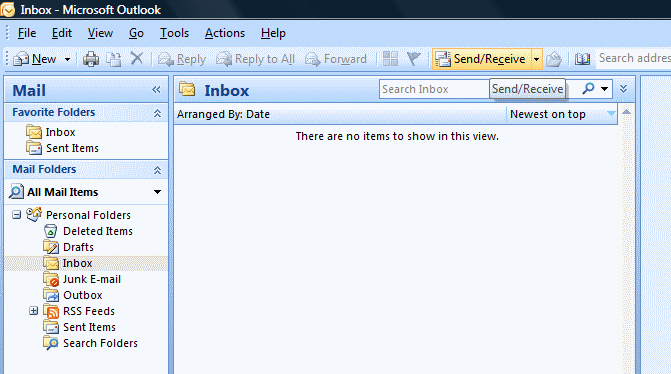
7. Click Next and Close to finish.
SSL/TLS settings for ASO Web mail servers
If your e-mail is hosted on ASO Web servers, the settings shown in the steps above (mail.yourdomain.com, ports 110/587 without encryption) still work. To set up your e-mail with an encrypted SSL/TLS connection, use:
| Incoming / outgoing server | smaug.aso.com.tr |
| IMAP | port 993, SSL/TLS |
| POP3 | port 995, SSL/TLS |
| SMTP (outgoing) | port 465, SSL/TLS, authentication required |
| User name | your full e-mail address |
Company E-mail Prices


Comments (0)