
Outlook Express Send/Receive Errors: The 2 GB Mailbox Limit
This guide is for Outlook Express (Windows XP). It is kept for users who still use this version. For current devices and programs:
E-mail Setup Wizard (TR)Can’t Send or Receive E-mail?Webmail Login
E-mail Setup Wizard (TR)Can’t Send or Receive E-mail?Webmail Login
Are your sent messages delivered to recipients again and again? Or do you get an error after receiving only part of your mail? One of the problems of Outlook Express on Windows XP is its database limit.
If you see an error such as “An unknown error has occurred…” while receiving mail and your Inbox holds many messages, your mail database may have exceeded the 2 GB limit. Each Outlook Express folder is stored as a .dbx file, and these files cannot grow beyond 2 GB. With heavy mail traffic the Inbox or Sent Items database reaches this limit and errors start.
How to recognise it
- The send/receive bar shows mail being received but stops after a while.
- Messages you send do not move from the Outbox to Sent Items and are sent to the recipient repeatedly.
Solution
- Open Outlook Express.
- Right-click Local Folders and create two new folders, e.g. Inbox old and Sent old.
- Move all messages from the Inbox to Inbox old.
- Move all messages from Sent Items to Sent old and wait until moving is complete.
- Now remove the old Inbox and Sent Items databases: go to Tools > Options > Maintenance > Store Folder, copy the folder path shown there and close Outlook Express.
- Click Start > Run, paste the path and press Enter.
- In the window that opens you will see Inbox.dbx and Sent Items.dbx. Delete or rename them and restart Outlook Express.
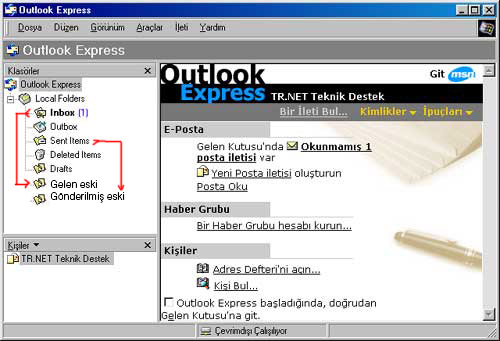
Outlook Express creates a new, empty Inbox and Sent Items folder and the problem is solved.
Need company e-mail with your own domain? Get trouble-free company e-mail on ASO Web servers with phone support.
Company E-mail Prices
Company E-mail Prices


Comments (0)