
Windows Mail (Windows Vista) E-mail Setup
This guide is for Windows Mail (Windows Vista). It is kept for users who still use this version. For current devices and programs:
E-mail Setup Wizard (TR)Can’t Send or Receive E-mail?Webmail Login
E-mail Setup Wizard (TR)Can’t Send or Receive E-mail?Webmail Login
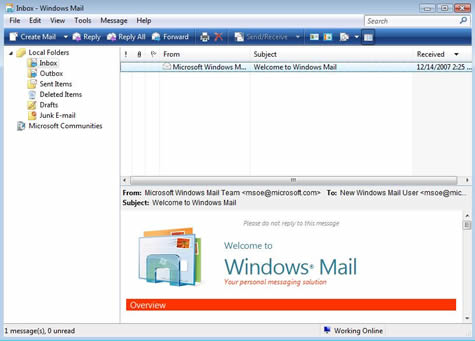
Windows Mail, with its fairly advanced spam filter, is a simple program for sending, receiving and archiving mail. Set it up with the e-mail address and password you were given as follows.
Example: user name [email protected], password ******
- Open Start > Programs > Windows Mail.
- Go to Tools > Accounts.
- With E-mail Account selected click Next.
- Display name: type your name > Next.
- E-mail address: type your e-mail address > Next.
- Incoming server type POP3; enter the incoming and outgoing mail servers; tick Outgoing server requires authentication > Next.
- User name: your full e-mail address; password: your password > Next > Finish.
- Open the account Properties > Advanced and set the server ports (see the current settings below).
SSL/TLS settings for ASO Web mail servers
If your e-mail is hosted on ASO Web servers, the settings shown in the steps above (mail.yourdomain.com, ports 110/587 without encryption) still work. To set up your e-mail with an encrypted SSL/TLS connection, use:
| Incoming / outgoing server | smaug.aso.com.tr |
| IMAP | port 993, SSL/TLS |
| POP3 | port 995, SSL/TLS |
| SMTP (outgoing) | port 465, SSL/TLS, authentication required |
| User name | your full e-mail address |
Need company e-mail with your own domain? Get trouble-free company e-mail on ASO Web servers with phone support.
Company E-mail Prices
Company E-mail Prices


Comments (0)