
Sample Barcode Label Designs
In short: This page offers 3 ready-made label designs created with Barcode Label Pro (Barkod Etiket Pro): a carton label for A4 laser printers (Code 39), a numbered label for roll barcode printers (Code 128, 80×40 mm) and a Datamatrix (2D) label (60×25 mm). Download the files, open them in Barcode Label Pro and double-click the barcodes and texts to adapt them to your own label. If you don’t have the program yet, download the trial version.
How to create a label with Barcode Label Pro
Before opening the sample files, here is a quick overview of how a barcode label is designed from scratch.
- Press the New label button. Choose a blank label or one of your saved designs.
- Select your printer. The program calculates the barcode bar widths according to the printer’s dpi, so choose the printer you will actually print with.
- Set the label size. Pick your label brand and type from the built-in templates or enter custom dimensions. Roll and A4 settings can be changed later under Settings > Page Label Settings (page and label settings).
- Add a barcode. Take the barcode tool from the toolbar and draw an area on the label. Double-click it and choose the symbology (EAN-13, Code 128, Code 39, Datamatrix, QR…) under Barcode Type.
- Enter the barcode content. Type your number or text in the Source section. For symbologies that need a check digit, the program calculates it automatically.
- Add text, logo and shapes such as product name, price or company name.
- Connect data for batch printing (optional). Use the Data button to connect to Excel, Access, SQL, ODBC or txt/csv files and drag the fields onto the label. One label is printed per row (database connection).
- Use a counter for serial numbers (optional). Write
COUNTER(start,step)in the Script section, e.g.COUNTER(1000,1)starts at 1000 and increases by 1 (counter tool). - Preview and print. Test the barcodes with a scanner in preview, then print the quantity you need.
Sample 1: Carton label (Code 39, A4 laser)
- Page: A4 laser printer, half-page label
- Barcode type: Code 39 Full ASCII
- Use: carton, shipping and warehouse labels
Download the carton label sample (ZIP)
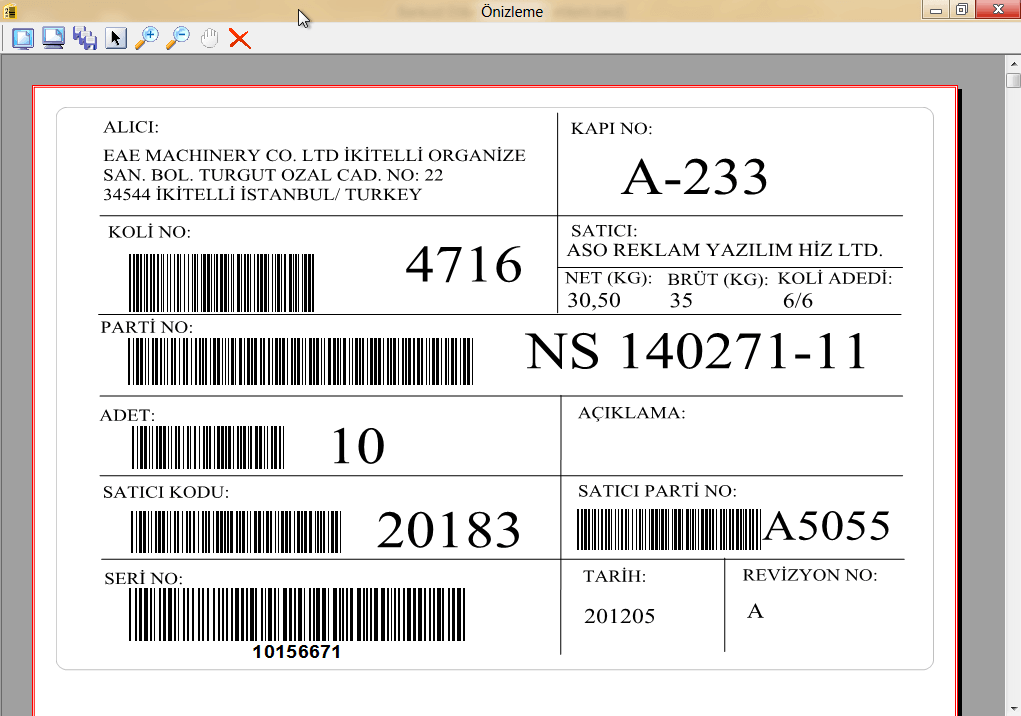
To adapt it to your label: double-click the barcodes and texts, enter your own barcode number or text in the Source section, or map the object to a database field in the Script section.
Sample 2: Auto-numbered barcode label (Code 128, roll)
- Label size: 80×40 mm, set up for roll barcode printers
- Barcode type: Code 128
- Counter: starts at 926297 and increases by 1 on each label
- Use: serial numbers, asset tags, production tracking
Download the numbered label sample (ZIP)
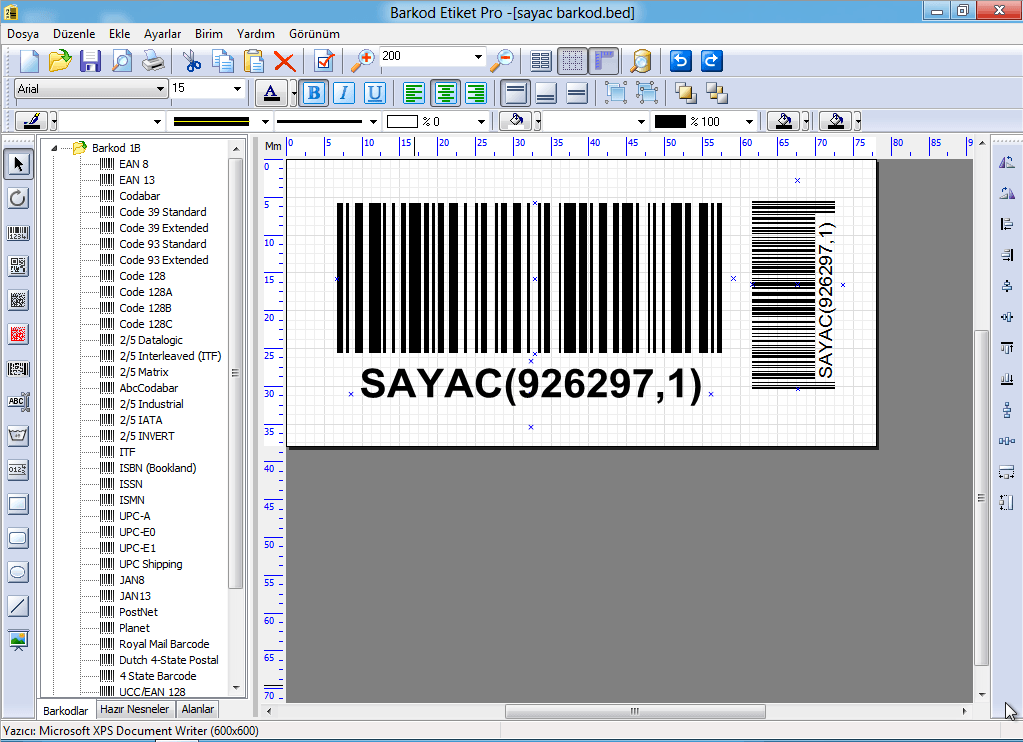
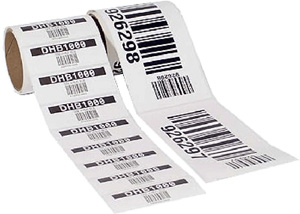
You can change the page size, label size, barcode size and symbology, and the counter’s start value as you like.
Sample 3: Datamatrix (2D) barcode label
- Label size: 60×25 mm on an A4 laser label sheet
- Barcode type: Datamatrix
- Use: pharmaceutical, medical and optical products
Download the Datamatrix label sample (ZIP)
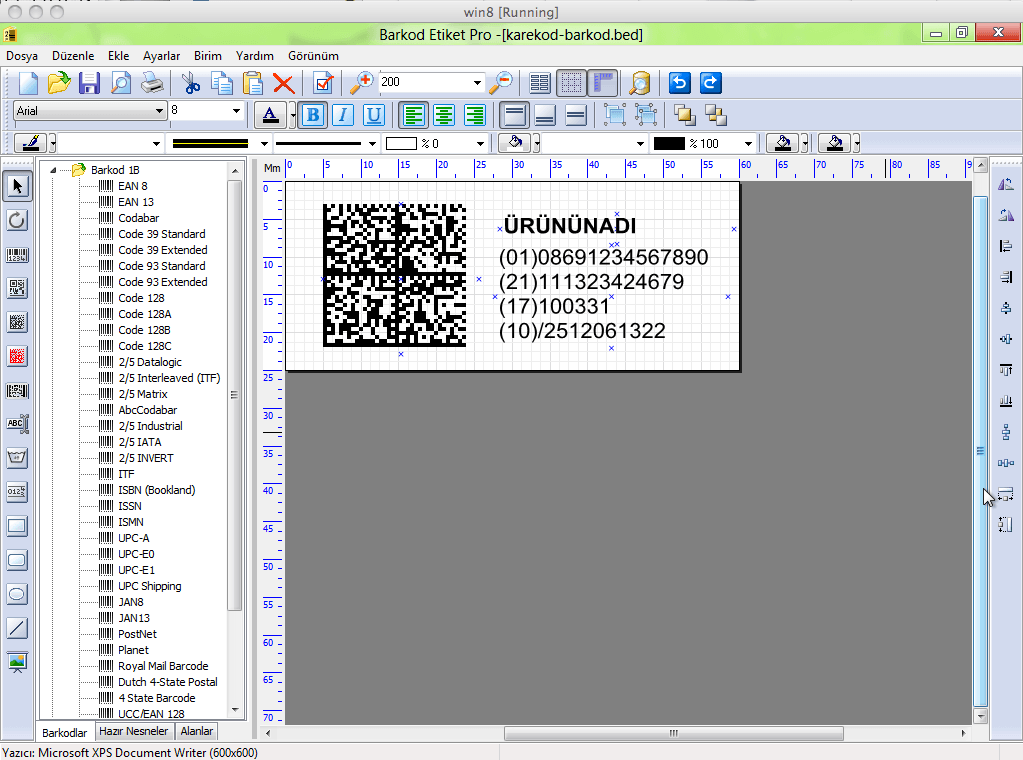
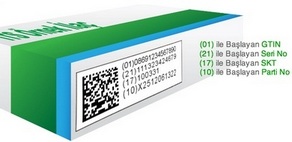
Double-click the objects to change the label size, the Datamatrix size and its content. More: Datamatrix barcode usage.
Which barcode type should you choose?
| Barcode type | What can it encode? | Typical use |
|---|---|---|
| EAN-13 | 13 digits only (last digit is a check digit) | Retail products. Numbers are issued by GS1. |
| Code 39 | Upper-case letters, digits and a few symbols; all ASCII in Full ASCII mode | Carton, warehouse and asset labels. Produces relatively long barcodes. |
| Code 128 | All 128 ASCII characters | Logistics, serial numbers, counters. Fits the same data into a shorter barcode than Code 39. |
| Datamatrix | Letters, digits and long text in a small area | Pharmaceutical, medical and optical products, small parts. |
See Barcode Standards for details.
Get Barcode Label Pro
Barcode Label Pro must be installed on your computer to open the sample files.
- Download the trial version
- Barcode Label Pro pricing and purchase (in Turkish)
- All features of Barcode Label Pro
Need help with installation or label design? Call us: +90 212 222 38 01 · Contact
Frequently asked questions
How do I create a barcode?
You don’t draw a barcode by hand: you type a number or text into barcode software and it generates the bars according to the chosen symbology. In Barcode Label Pro, add a barcode with the barcode tool, double-click it, choose the barcode type and enter your number in the Source section. For symbologies with a check digit, such as EAN-13, the program calculates the last digit.
Which program opens the sample label files?
The ZIP files contain .bed design files of Barcode Label Pro. Open them with Barcode Label Pro; the trial version can open them as well.
Can a barcode contain a name or letters?
Yes. Code 128, Code 39 and Datamatrix can encode letters. EAN-13 contains digits only. You can also print the name as separate text below or next to the barcode.
Should I use roll labels or A4 label sheets?
For small quantities printed on an office printer, A4 laser label sheets are enough. For large, continuous runs, roll labels with a barcode printer are faster and more economical. Barcode Label Pro supports both.
How do I print sequentially numbered barcode labels?
Double-click the barcode and write COUNTER(start,step) in the Script section. For example COUNTER(1000,1) prints 1000 on the first label and 1001 on the next. Sample 2 on this page is a ready-made numbered label.
Can I print barcode labels in bulk from an Excel product list?
Yes. Connect to your Excel file with the Data button and drag columns such as product name, barcode number and price onto the label. One label is printed per row. Access, SQL, ODBC and txt/csv sources are supported too.


Comments (0)